Recording Zoom
Bot ✅ · Browser extension ✅ Zoom in the browser only · Voice recording (mic) ✅ See Supported platforms.
Zoom needs to know who invited the bot. So a Zoom bot cannot join until you connect your Zoom account. It takes one minute, and you do it once: in the sidebar, click Integrations, then the Zoom card. See Connect your Zoom account.
Google Meet and Microsoft Teams don't need this. It is only for Zoom.
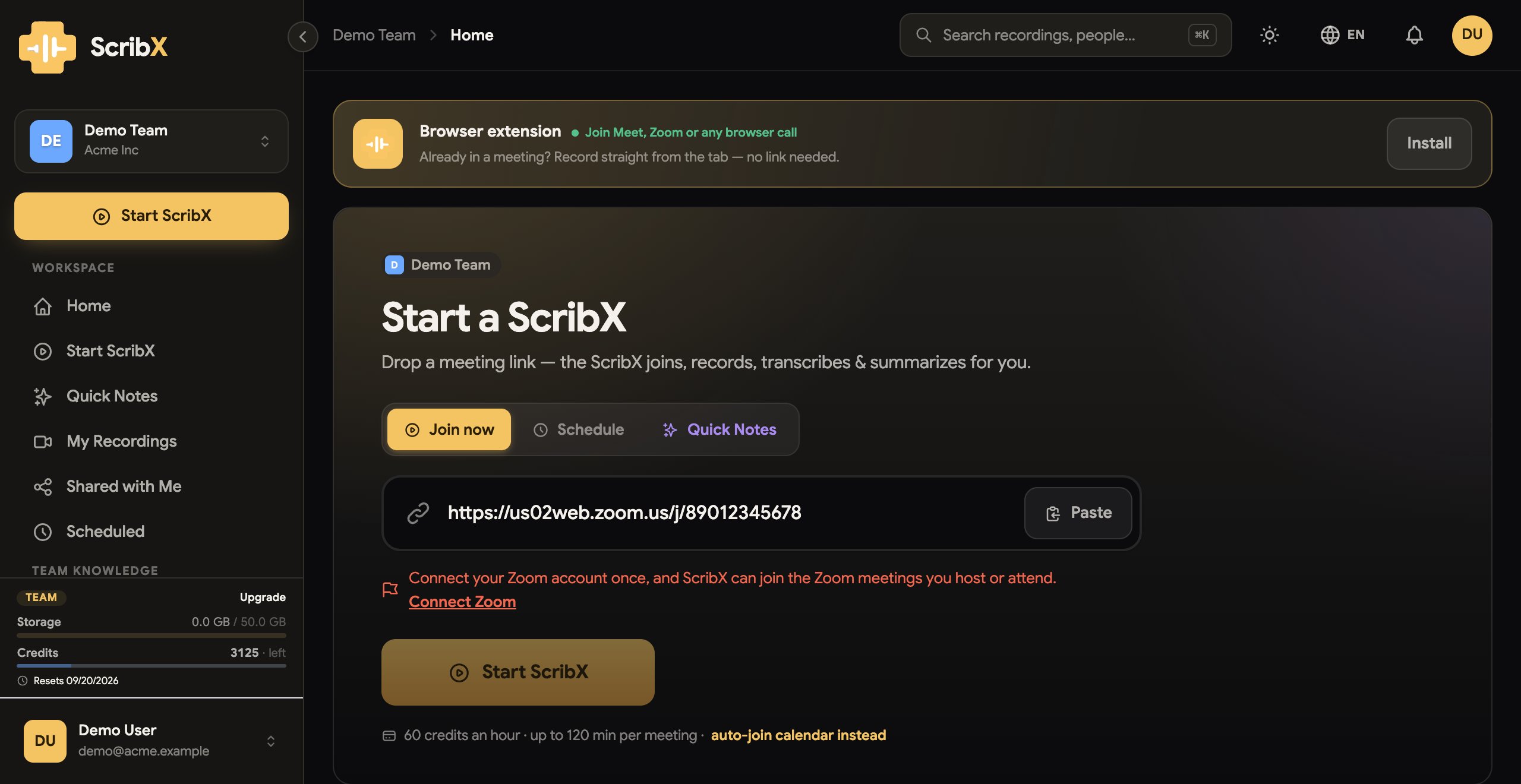
Which way to record
| You are… | Use | Why |
|---|---|---|
| In the Zoom desktop app (most people) | Send a bot | The extension can't see the desktop app. |
| In a call in Zoom in the browser | A bot, from the web app or from the extension panel | The extension panel shows the transcript beside the call. |
| In a room, with no call | Voice recording | It records your microphone. |
Step by step — send a bot
This works for people on the Zoom desktop app and on Zoom in the browser.
- Copy the meeting link.
Desktop app: Meetings → pick the meeting → Copy Invitation (or Copy Link).
During a call: Participants → Invite → Copy Invite Link.
The link looks like
…zoom.us/j/…. Keep the passcode if it is part of the link. - In the web app, click New note in the sidebar.
- Paste the link into the Paste a meeting link box at the top of the empty note.
- ScribX checks the link. If it says that your Zoom account isn't connected, connect it, then paste the link again.
- (Optional) Under For this meeting:, choose the languages. Click Options to choose the transcription type and the summary template. You can also set your defaults once in your meeting preferences.
- Click Invite ScribX.
- Admit the bot if the meeting has a waiting room (see below).
The bot appears in the participant list within a few moments. A meeting costs 1 credit per minute. See Credits & usage.
→ More detail: Send a bot
Admit the bot
If the Waiting Room is on, the host lets ScribX in:
- The host opens Participants.
- ScribX is in the waiting room.
- The host clicks Admit.
With a connected account, ScribX can often skip the waiting room in meetings that you host. Full steps: Admit the bot.
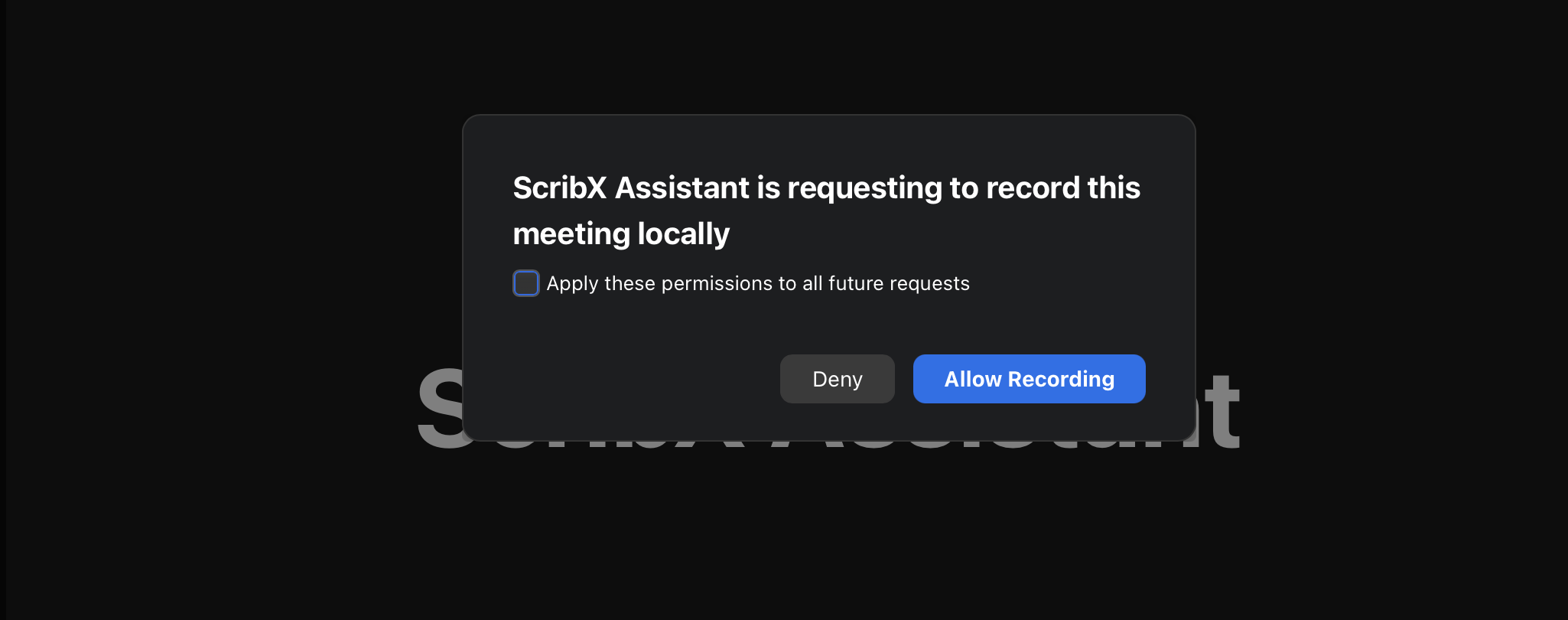
On some Zoom plans, ScribX must also ask the host for permission to record. The host clicks Allow Recording. If the host also ticks Apply these permissions to all future requests, Zoom does not ask again in later meetings.
 12
12- 1Allow Recording
- 2Don't ask again in later meetings
End the recording and find your notes
The bot leaves when the meeting ends. To stop earlier, open the note in the web app and click End in the Recording panel, then End recording. Or the host removes ScribX from the meeting. See Manage the bot.
Your note is in My notes in the web app sidebar. The summary appears a few moments after the call ends.
Step by step — from the extension (Zoom in the browser only)
Use this only when you joined the call in your browser. In the Zoom desktop app, the extension can't see the call.
- Install the extension and sign in.
- Join the meeting in Zoom in the browser (
app.zoom.us). - Click the ScribX icon in your browser toolbar, then Capture this meeting. The ScribX panel opens next to the call.
- Click Start ScribX. A bot joins the call, so your Zoom account must be connected. Live captions with no bot are not available on Zoom.
→ More detail: Capture from the extension
Troubleshooting
- "Connect your Zoom account…" when I paste the link — see the box at the top of this page. Connect your account, then paste the link again.
- The bot stays on "Joining" — the waiting room is on. The host must admit it.
- A teammate's meeting won't record — the connected Zoom account must belong to the person who sends the bot, or to the meeting's host. Your connection does not cover a colleague who sends a bot.
- The bot won't join — check that you pasted the full
zoom.us/j/…link, with the passcode if the link has one. - No ScribX panel in Zoom — the extension works only in Zoom in the browser. In the desktop app, send a bot instead.