Manage the bot in-call
After you send a bot, you can follow its status, help it get into the meeting, and remove it at any time. You can do this from the note in the web app, or from the extension panel in the call.
Bot states
The note shows the bot's state:
| State | What it means |
|---|---|
| Joining | Connecting to the meeting, or waiting in the lobby |
| In meeting | Recording and transcribing |
| Ended | The bot left the call. ScribX is writing the summary |
If the bot stops before the meeting ends, the note says why. For example: a host removed it, or it was alone in the call.
Admit the bot to the meeting
Many meetings keep outside guests in a lobby (waiting room) until a host lets them in. The ScribX bot is a guest like any other. While it waits, its state is Joining. When a host lets it in, the state changes to In meeting and recording starts.
How to let the bot in, by platform:
- Google Meet — when ScribX asks to join, a host clicks Admit. If no message appears, open People and admit ScribX there.
- Zoom — if the Waiting Room is on, the host opens Participants and clicks Admit next to ScribX.
- Microsoft Teams — the bot waits in the lobby. An organizer opens the participants panel and clicks Admit.
For regular meetings with your own team, ask the host to let ScribX in automatically, or to turn off the waiting room for that meeting.
When a bot won't join
If the bot can't get in, the note shows the reason. Common causes:
- Nobody let it in, or a host clicked Deny. Send the bot again: open a new note, paste the same link, and click Invite ScribX. Ask the host to admit it this time.
- The meeting blocks guests. Some meetings only allow people from the host's company. Ask the organizer to allow guests.
- The link is wrong or incomplete. Copy the full link again.
- Zoom: your Zoom account is not connected.
More fixes are in Troubleshooting. If nothing works, make a voice recording instead.
Remove the bot during the call
You can stop the recording at any time. ScribX still makes a note from everything it recorded until then.
 1
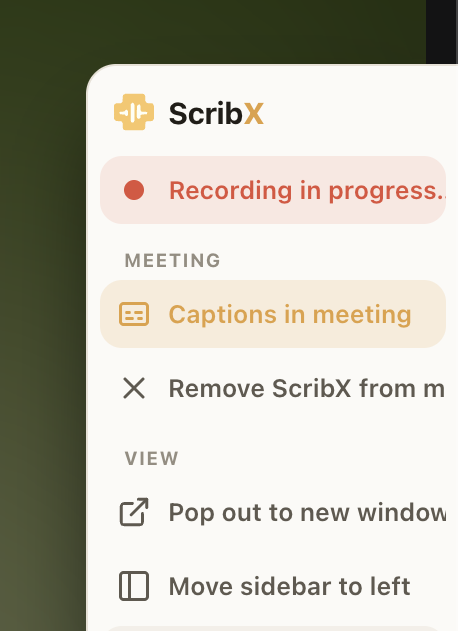
1- 1Remove ScribX from meeting
- In the web app — open the meeting's note. In the Recording panel on the right, click End, then End recording. The bot leaves the call. Pause stops the recording for a while, and the bot stays in the call.
- In the extension panel — click Remove ScribX from meeting, then confirm.
- In the meeting — a host can remove the ScribX participant like any other person.
Access to the recording
The person who sends the bot owns the recording. Who else can open it depends on where the note is saved. A note in a team can be opened by everyone in that team. A note in your own space is only yours until you share it. See Share recordings and Teams & roles.