Connect your Zoom account
Before ScribX can join a Zoom meeting, you must connect your Zoom account. You do this once. The connection then works in every team you are in.
Without a connected account, Zoom does not let the ScribX bot join. ScribX warns you on the Start ScribX screen, before you send the bot.
Google Meet and Microsoft Teams do not need this step.
Before you start
- You have a ScribX account and a Zoom account (any Zoom plan).
- If your company's Zoom admin controls which apps people may add, ask them to approve ScribX on the Zoom Marketplace first.
Connect it
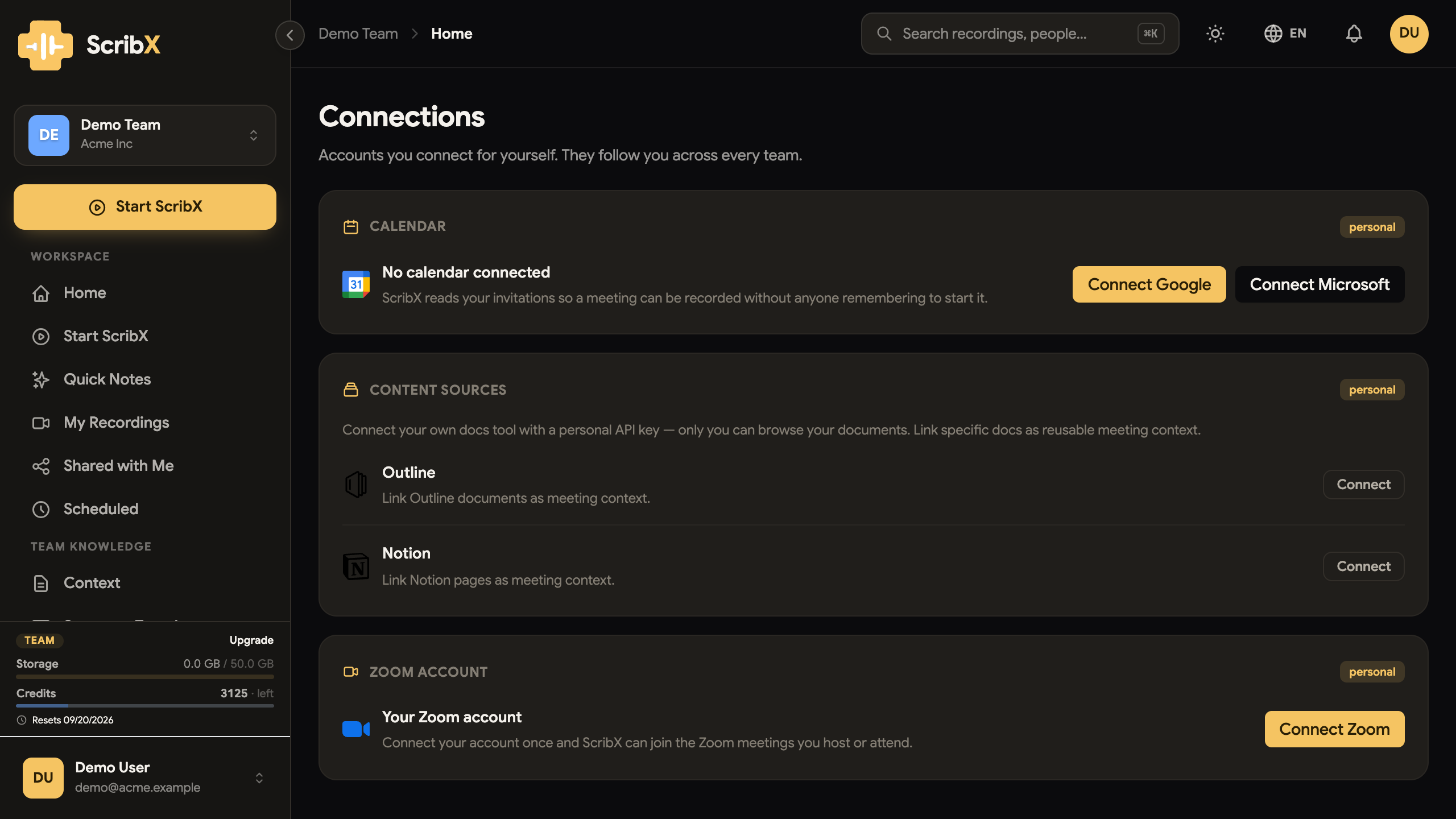
1. Open Integrations → Zoom and click Connect
In the web app, in the sidebar under MORE, click Integrations. Then click the Zoom card. The Connection section says whether your account is connected. Click Connect.
2. Sign in to Zoom and review what ScribX asks for
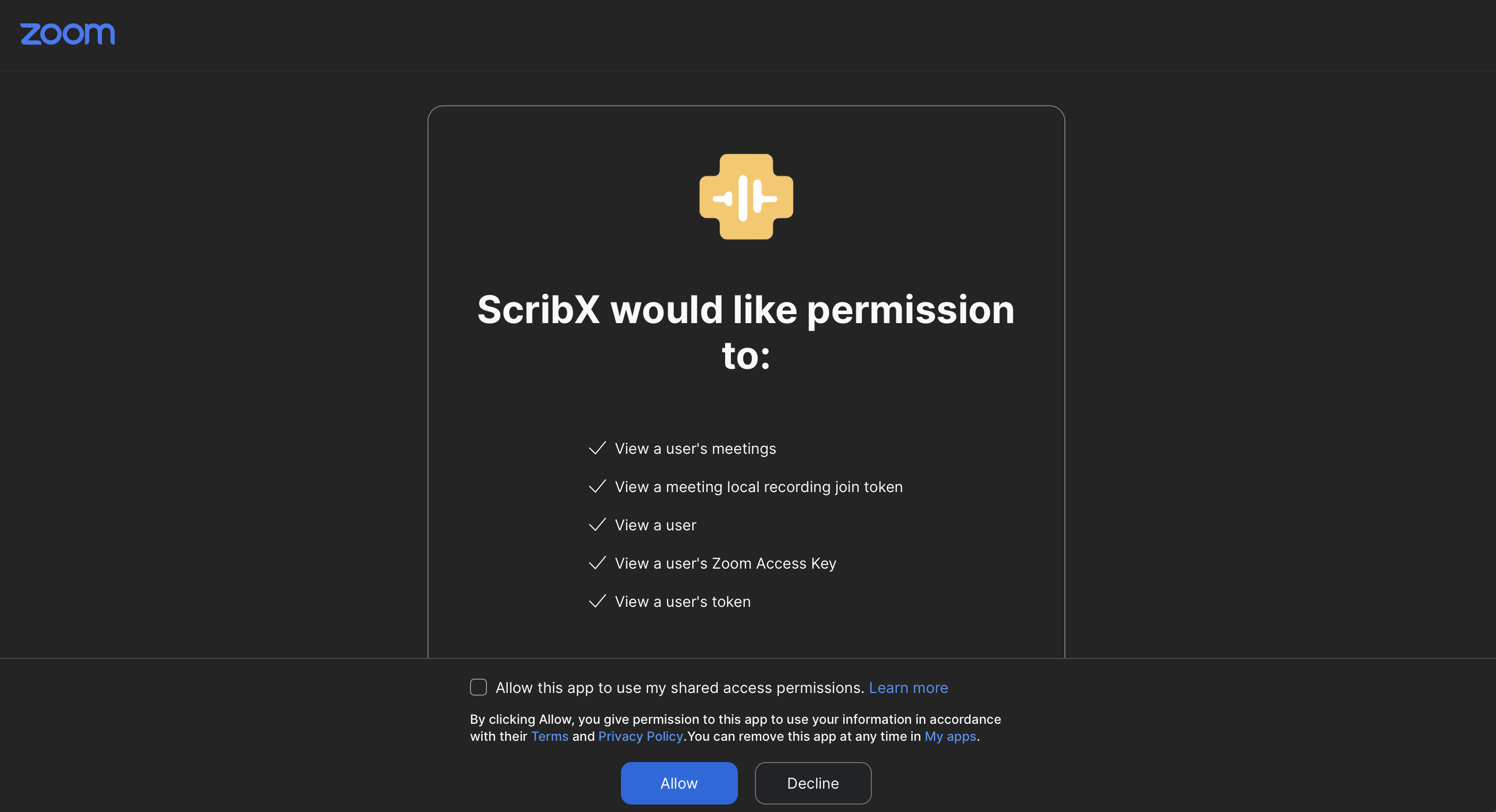
The zoom.us website opens. Sign in if you are not signed in yet. Zoom then shows what the ScribX app asks for.
 12
12- 1Allow — finishes the connection
- 2Optional. Leave it unticked
Then click Allow. If you click Decline, you go back to ScribX and nothing is connected.
The checkbox at the bottom belongs to Zoom, and it is optional. Leave it empty, unless your Zoom admin asked you to tick it.
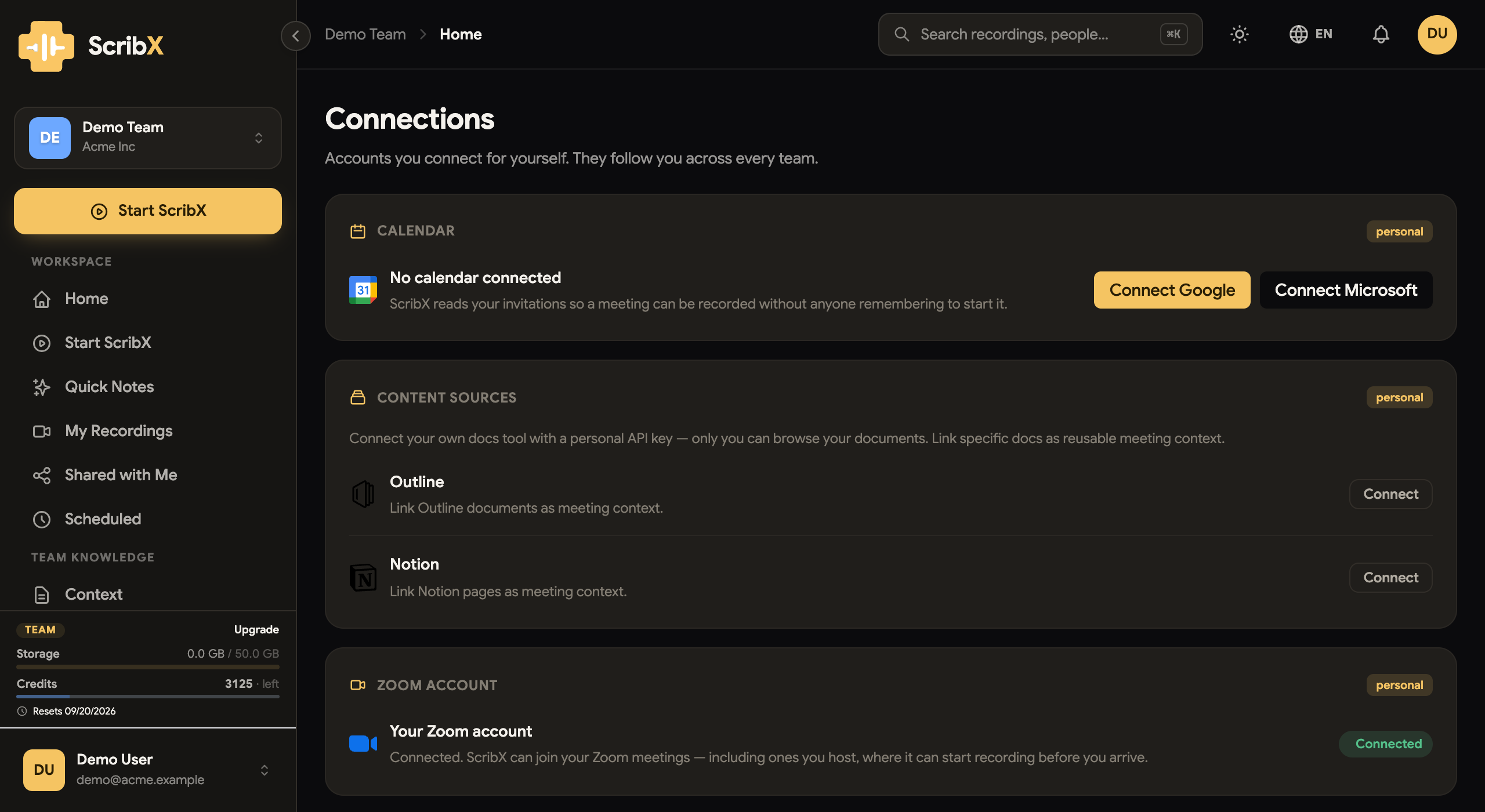
3. You see Connected
You come back to ScribX. The Zoom page now shows Connected. The setup is complete. You can send ScribX to a Zoom meeting now.
 1
1- 1Connected — nothing else to do
A Zoom connection belongs to one person, not to a team. Your connection does not cover your teammates. A teammate who wants to record their own Zoom meetings connects their own account in the same way.
What it lets ScribX do
| What Zoom asks | Why ScribX needs it |
|---|---|
| View a user / View a user's token | To know which account sent the bot. Zoom does not admit an app that cannot say this. |
| View a user's Zoom Access Key | To join a meeting you host as you, not as an anonymous guest. |
| View a meeting local recording join token | So the bot can start recording without asking the host in the meeting, and can skip the waiting room. |
| View a user's meetings | To match a meeting link to the account that hosts it. |
Some things are not on the list. ScribX cannot read your Zoom cloud recordings, your chat, or your contacts.
Check or remove it
Open Integrations → Zoom. The page shows whether your account is connected. When it is connected, the page has a Disconnect button.
Disconnecting:
- ScribX can no longer join Zoom meetings for you. The Start screen refuses Zoom links until you connect again.
- It applies in every team you are in, because the connection belongs to you, not to a team.
- Recordings you already made stay where they are.
- It does not affect your teammates. Their connections belong to them. An organization admin cannot disconnect them either. (Admins manage the organization's Zoom app in Settings → Organization → Meeting preferences → Meeting platforms. That is a different setting. See Zoom App integration.)
Troubleshooting
- "Connect your Zoom account…" on the Start screen. Your account is not connected yet. Follow the steps above, then paste the meeting link again.
- The Connect button sends me back with an error. Your Zoom admin may block new apps. Ask them to approve ScribX on the Zoom Marketplace first.
- A teammate's meeting still does not record. Check that their account is connected. Your connection only covers meetings you host or attend.
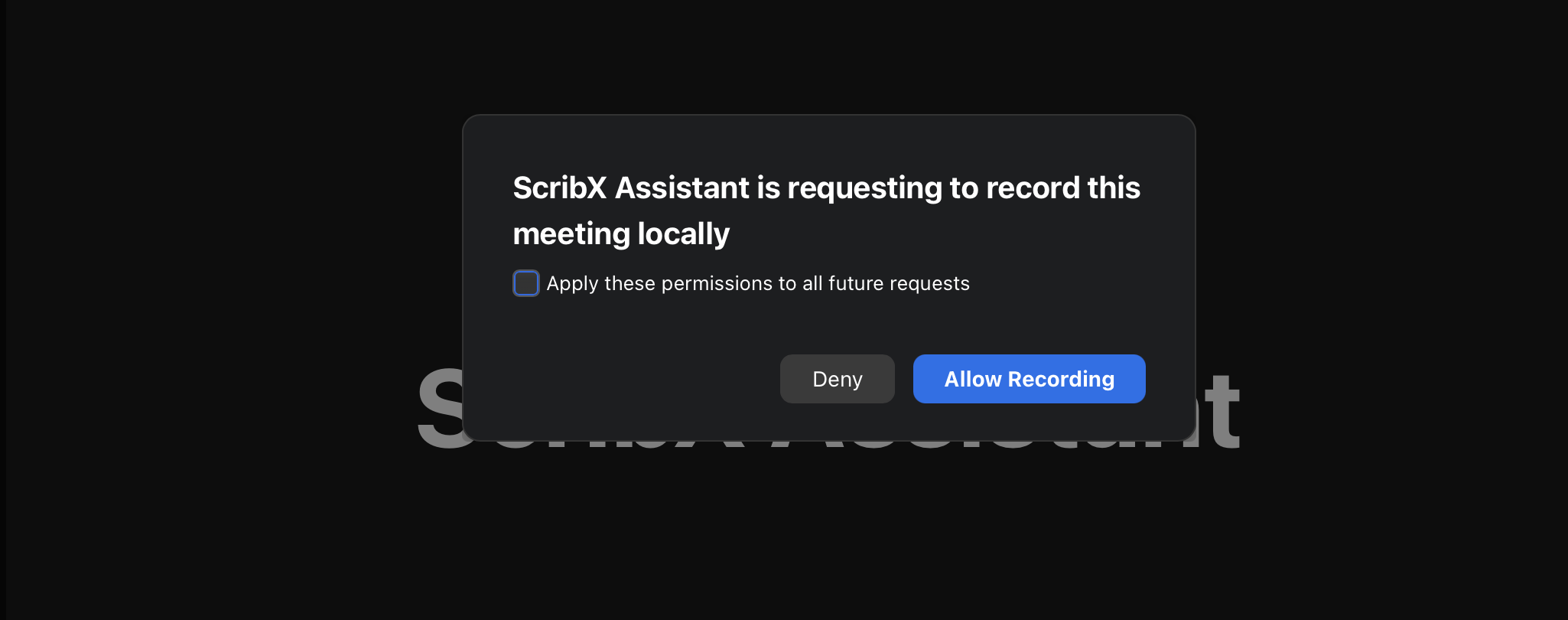
- The bot joins but waits for recording permission. On some Zoom plans, ScribX cannot get the recording permission in advance. It asks the host in the meeting instead. The host clicks Allow Recording, and the bot starts recording.
 12
12- 1Allow Recording: the bot starts recording
- 2Tick this to stop future requests
What's next?
- Recording Zoom: the steps for one meeting
- Zoom App integration: for admins who use their own Zoom Marketplace app