Teams & roles
ScribX puts people and meetings in three levels. When you know them, you know where a meeting is kept and who can open it.
The three levels
- Organization: your company account in ScribX. Billing and company-wide rules are set here.
- Team: a group inside the organization. Meetings are recorded and kept in a team. You can be in several teams.
- Recording (note): is kept in one team, or in your own space. The person who recorded it is its owner.
When you record a meeting, you choose the team for it. The team decides who can find the meeting.
Your teams
- You also have your own space. A note there shows Personal under its title. In My notes it shows Not in a team yet. Only you can see these notes until you share them.
- You can create more teams, for example for a department, a client or a project. See Create a team.
- Your teams are in the sidebar, under MY TEAMS. Click a team to see its notes. A new note that you start there is kept in that team. My notes shows all your notes from every team.
Where meetings are kept and who sees them
- A recording made in a team can be opened by everyone in that team. They get the Viewer role. (A team can change this to Only the person who records. See Create a team.)
- A recording in your own space can be opened only by you.
- You can share any recording with more people. Click Share on the note.
- If you move a recording to another team, the people who can find it change too.
Use different teams for different groups of people. For example, one team for your own colleagues and one for work with a client. Then the right people see the right meetings from the start.
Create a team
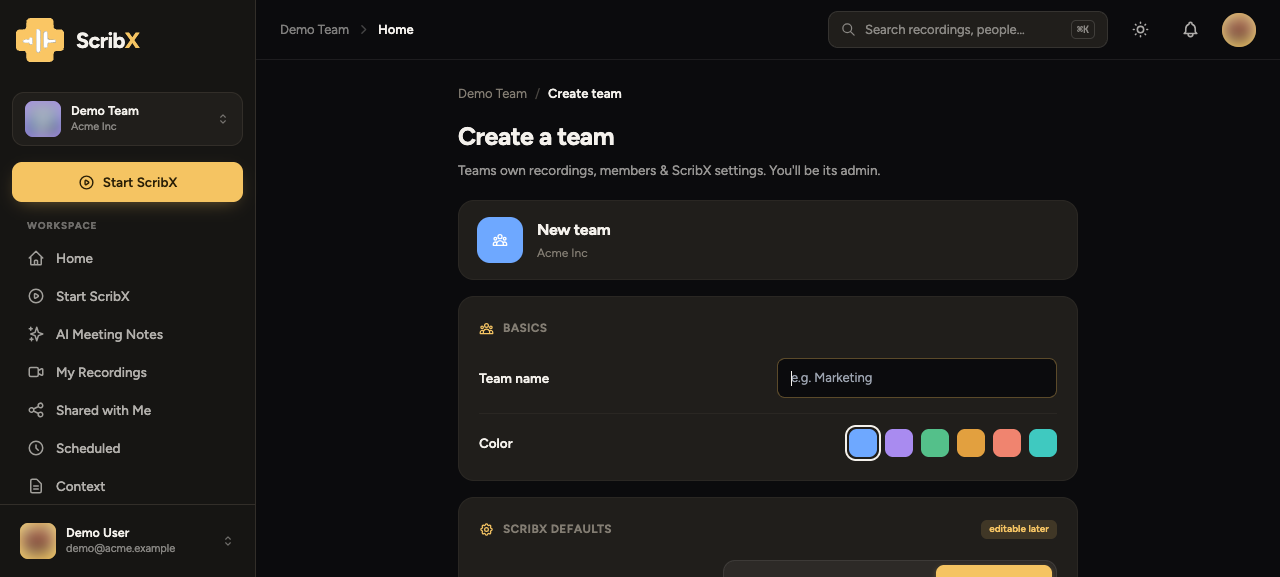
Create a team for a department, a client or a project. You become the team's Admin. The team has its own recordings, members and settings.
 123
123- 1Team name and colour
- 2Who sees new recordings
- 3Add people
- In the sidebar, under MY TEAMS, click Create team.
- Type a Team name. Click the colored square next to it to pick a color.
- Under Who sees new recordings, choose one:
- Only the person who records. Each person shares a recording with the team when they want to.
- Everyone in the team. New recordings show on the team's page at once.
- Optional: under People, add colleagues who are already in your organization. Choose a role for each one.
- Click Create team.
Your organization decides who can create teams: every member, or only organization admins.
To change the team later: click your avatar → Profile & settings → Teams → pick the team. Under Profile you can change the name, logo and color. Delete team is at the bottom. You must first move or remove the team's recordings and calendars.
Roles
A team role is what you can do in one team:
| Team role | What you can do |
|---|---|
| Member | Record, view and share this team's meetings |
| Admin | All of the above, and manage the team's members, settings and integrations |
An organization role is what you can do in the whole organization:
| Organization role | What you can do |
|---|---|
| Member | Use the app and join teams. Cannot manage the organization. |
| Admin | Manage the organization's members, plans, billing and security. See Organization admin & controls. Enterprise |
To see your roles: click your avatar → Profile & settings → Teams → pick the team → Members. The ROLE column shows each person's role. An organization admin is shown as Org admin.
An organization admin cannot approve an access request for another person's recording. Only the owner of the recording and the people with Editor access can approve it.
Add people
There are two different tasks. Pick the one you need.
Add a colleague who is already in the organization to a team
A team admin can do this.
- Click your avatar → Profile & settings.
- At the top, click Teams. Pick the team. On the left, click Members.
- Click Invite members.
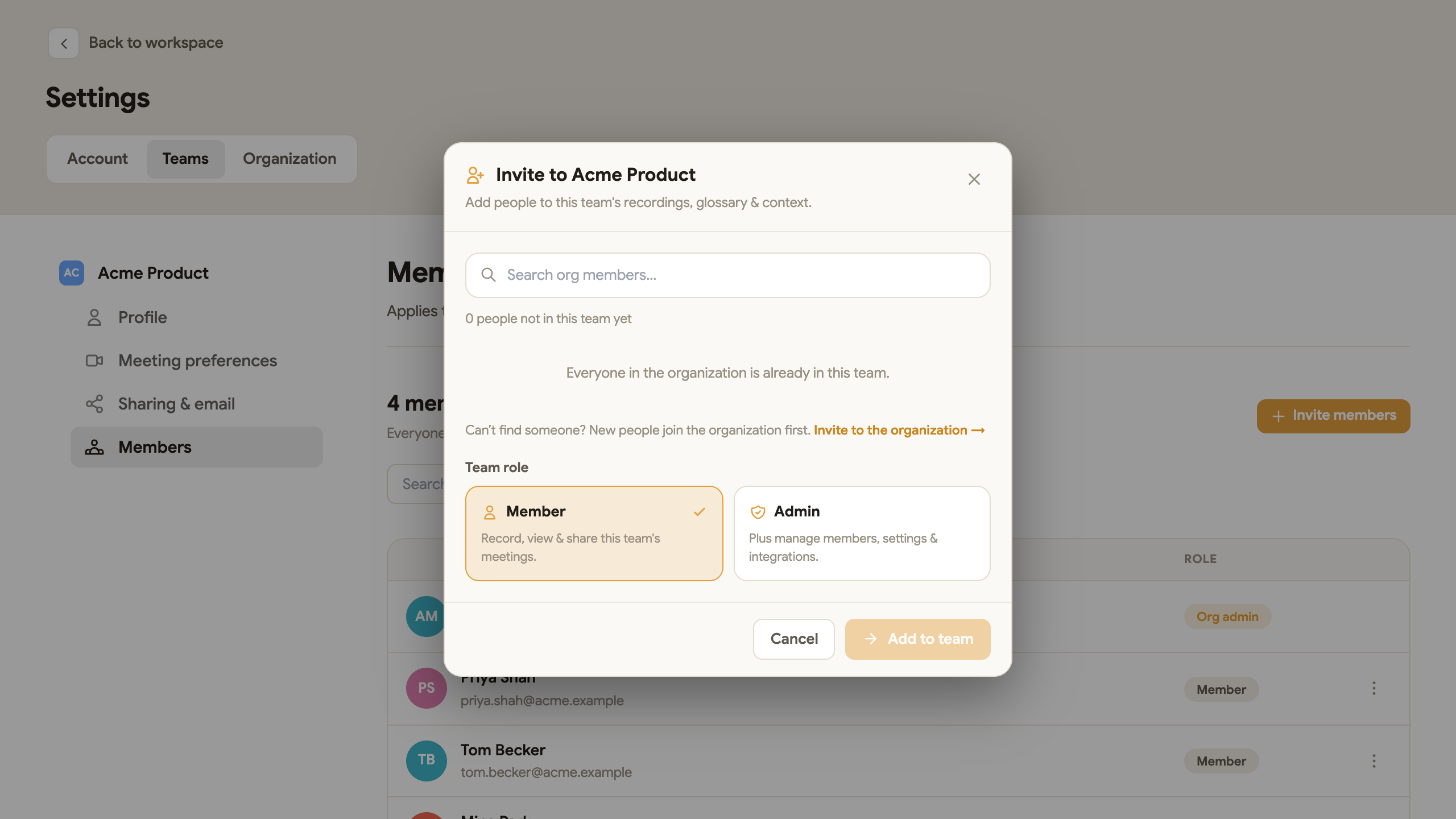
- Search for the colleague and select them.
- Under Team role, choose Member or Admin.
- Click Add to team.
 1234
1234- 1Search your colleagues
- 2Person not found? Invite them
- 3Team role
- 4Add to team
If you cannot find the person, they are not in the organization yet. Click Invite to the organization → and follow the steps below.
Invite a new person to the organization
An organization admin can do this. The new person gets a company account.
- Click your avatar → Profile & settings.
- At the top, click Organization. On the left, click Members.
- Click Invite members.
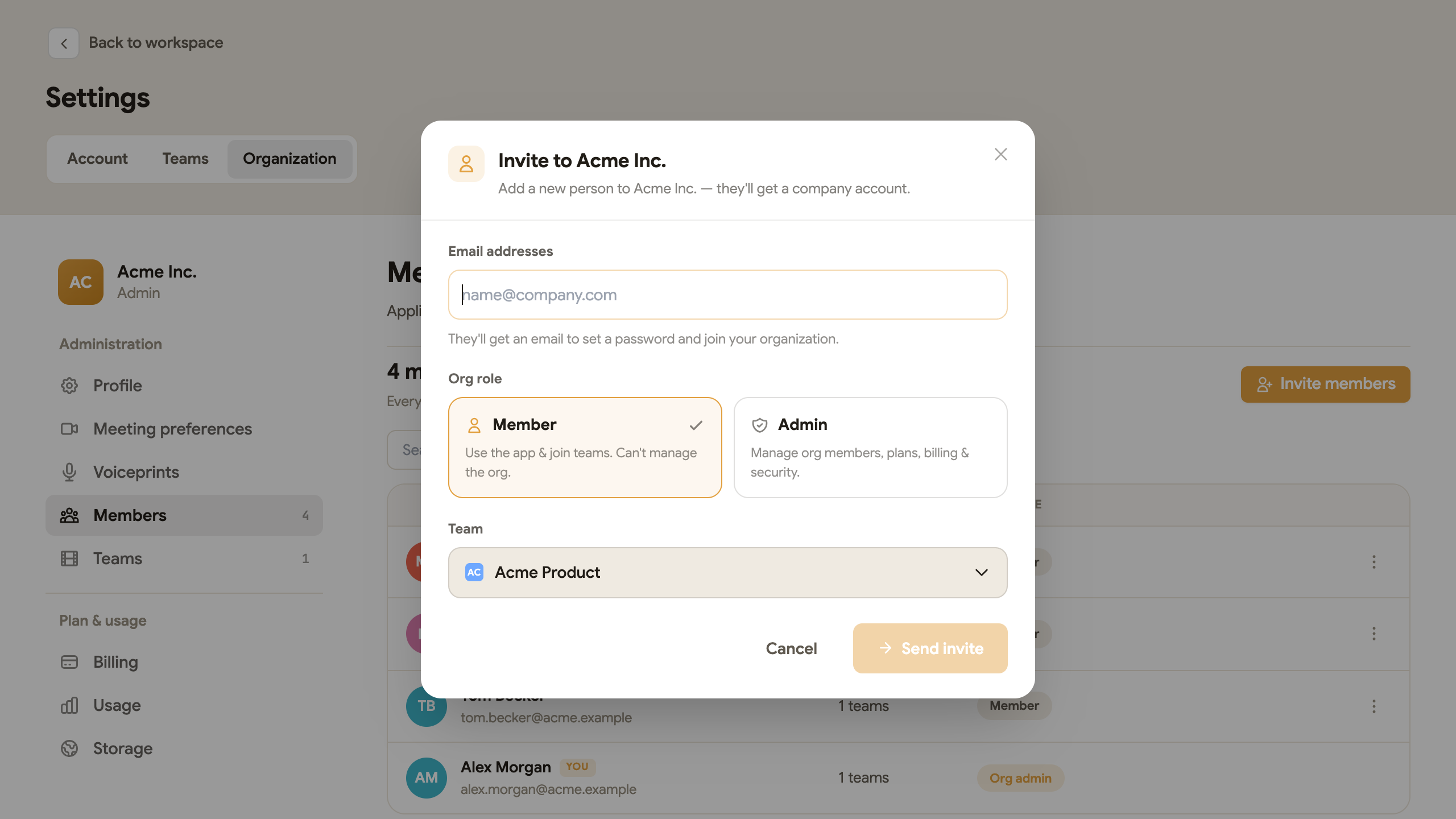
- Under Email addresses, type the person's email address.
- Under Org role, choose Member or Admin.
- Under Team, choose the first team for this person.
- Click Send invite.
 1234
1234- 1Email addresses
- 2Org role
- 3First team
- 4Send invite
The person gets an email. They set a password and join the organization. There is no general link that anyone can use to join. Each new person needs their own invitation.
On the Team plan, each person uses one seat (one paid place). When all seats are in use, ScribX cannot send more invitations. An admin must add seats in Billing or remove someone first. See Plans & billing.