Recording & summary settings
Settings decide how ScribX records and summarizes your meetings by default. You set them once, and every new meeting uses them.
You can still change the settings for one meeting when you start it. Click Options under the meeting link on the new note. See the note page.
Open Settings
- Click your avatar (your initials). It is at the top right of the page, and also at the bottom of the sidebar.
- Click Profile & settings.
Settings open in the whole window. To go back, click Back to workspace at the top left. At the top there are three areas. You see only the areas you are allowed to change:
- Account: only for you. Profile, Meeting preferences, Sharing & email and Voiceprint.
- Teams: for team admins. Pick a team to see its Profile, Meeting preferences, Sharing & email and Members.
- Organization: for organization admins. See Organization settings.
Under each page title, a line says who the page applies to: Applies only to you, or Applies to everyone in a team or the organization.
If you see Teams at the top of Settings and your team is listed there, you are an admin of that team. If not, ask the person who created the team.
Your own settings
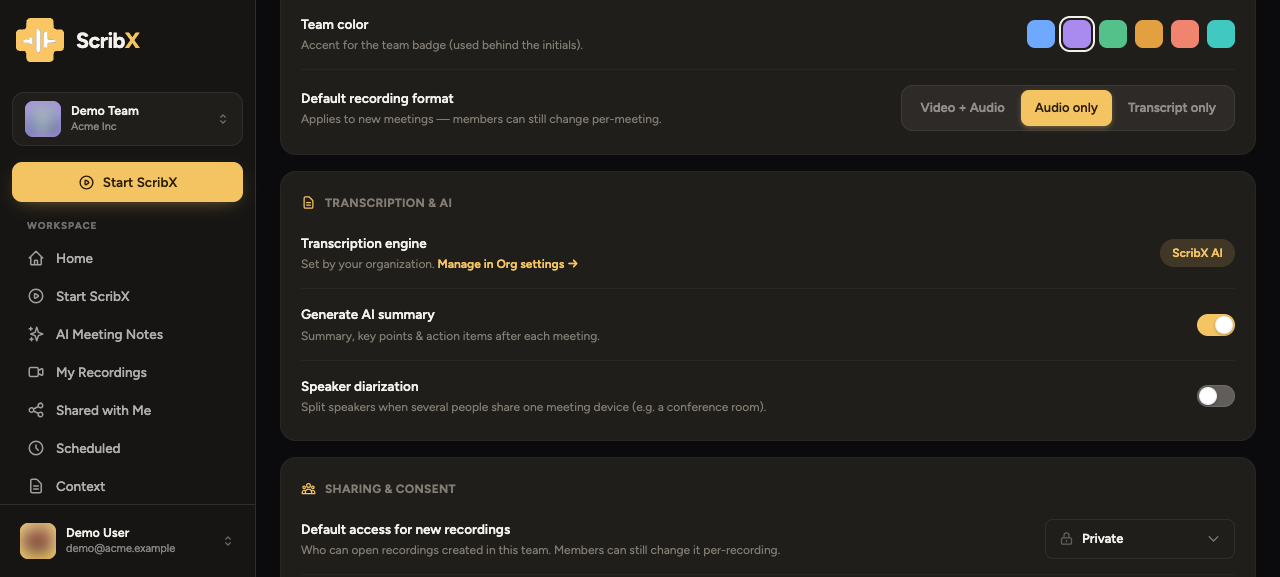 12
12- 1Profile · Meeting preferences · Sharing & email · Voiceprint
- 2Recording format
- Profile: your photo and name, your Time zone, and Your language. Your language is the language of the app, of the summary and of the summary email.
- Meeting preferences:
- Recording format: Video + Audio, Audio only or Transcript only. The transcript and the summary are always kept.
- Meeting languages: the languages people speak in your meetings. New meetings start with these languages.
- Sharing & email:
- Who sees new recordings. A recording in your own space is only for you. A recording in a team is for that team.
- Whether team recordings are also shared with the whole organization.
- Summary email: who receives the summary by email.
- Voiceprint: record your voice so ScribX can show your name in meetings. See People & voiceprints.
Team settings: who decides
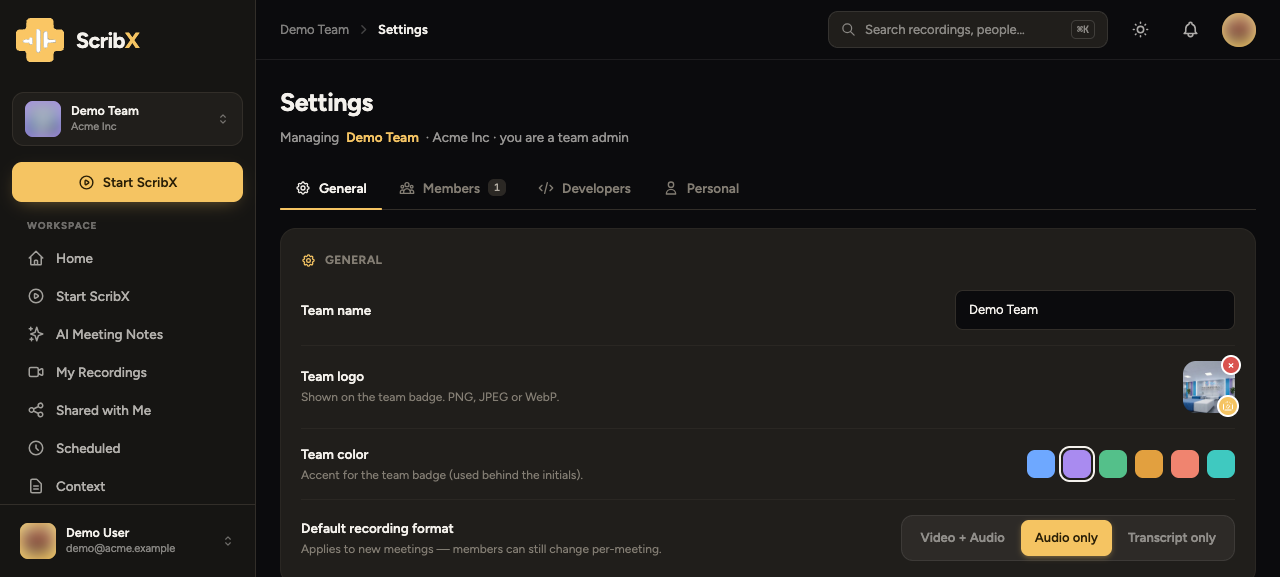 12
12- 1The team's pages
- 2Each member, or one setting for all
Three settings can be decided by each person or by the team: the Recording format, Who sees new recordings, and Send the summary to (the summary email). For each of them, a team admin chooses:
- Let each member choose: each member's own setting (in Account) is used. This is the default.
- Use one setting for the whole team: the team's setting is used for everyone in the team. It replaces each member's own choice. The team's value appears below this option when you choose it.
A team also sets:
- Generate AI summary (in Meeting preferences): whether ScribX writes a summary after each meeting.
- Auto-share with participants (in Sharing & email): everyone who joined the meeting gets access to the recording. ScribX matches them by email address.
- Its Profile (name, logo, colour) and its Members. See Teams, projects & roles.
There is no default summary template for a team. Each meeting uses General, unless someone picks another template for that meeting. See Summary templates & ScribX layout.
Meetings from your calendar
When ScribX joins a meeting from your connected calendar, it uses your settings. If your team uses one setting for the whole team, the team's setting is used instead.