Compact mode
Compact mode is the ScribX web app made for a phone screen. It has a bar at the bottom with three buttons and a large record button in the middle. You use the same account, the same notes and the same teams as on a computer. Only the menus and the layout are different.
Before you start
- You need a phone with a web browser.
- You do not need to install anything. Open platform.scribx.app in your phone's browser and sign in. ScribX opens in Compact mode on a phone.
- To record, allow the browser to use the microphone when it asks.
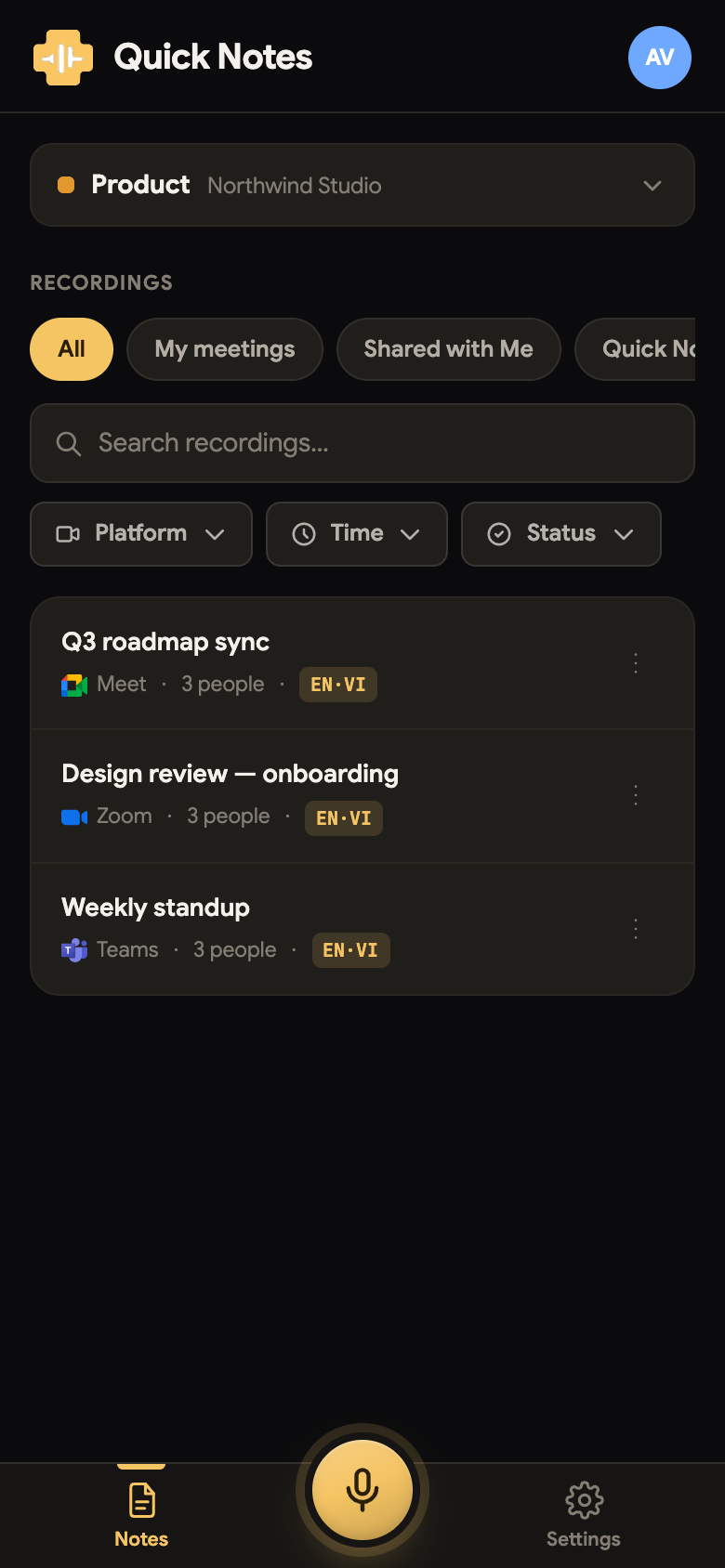 123
123- 1Team button: tap to change team
- 2My notes · Shared with Me · Voice recording
- 3Notes · Record · Settings
Getting around
The bar at the bottom of the screen has three buttons:
- Notes: the list of your notes. This is the first screen you see.
- Record (the round microphone button in the middle): starts a new recording on your phone.
- Settings: your meeting settings, sharing, light or dark look, and the app language.
At the top of the Notes screen, the team button shows the team you are in. Tap it to change team. Personal means your own space. Tap your initials (top right) to open your account: from there you can go to Settings, switch to the Full site, or Sign out.
Record from your phone
- Tap the round Record button in the middle of the bottom bar. The Record on this device panel opens.
- Check My language: the language you speak.
- Check Others read in: the language the other people read. Tap + Add to add another language, or tap × to remove one.
- Leave Save the audio on if you want to keep the sound. Turn it off to keep only the text.
- Tap the round button above Tap to start recording.
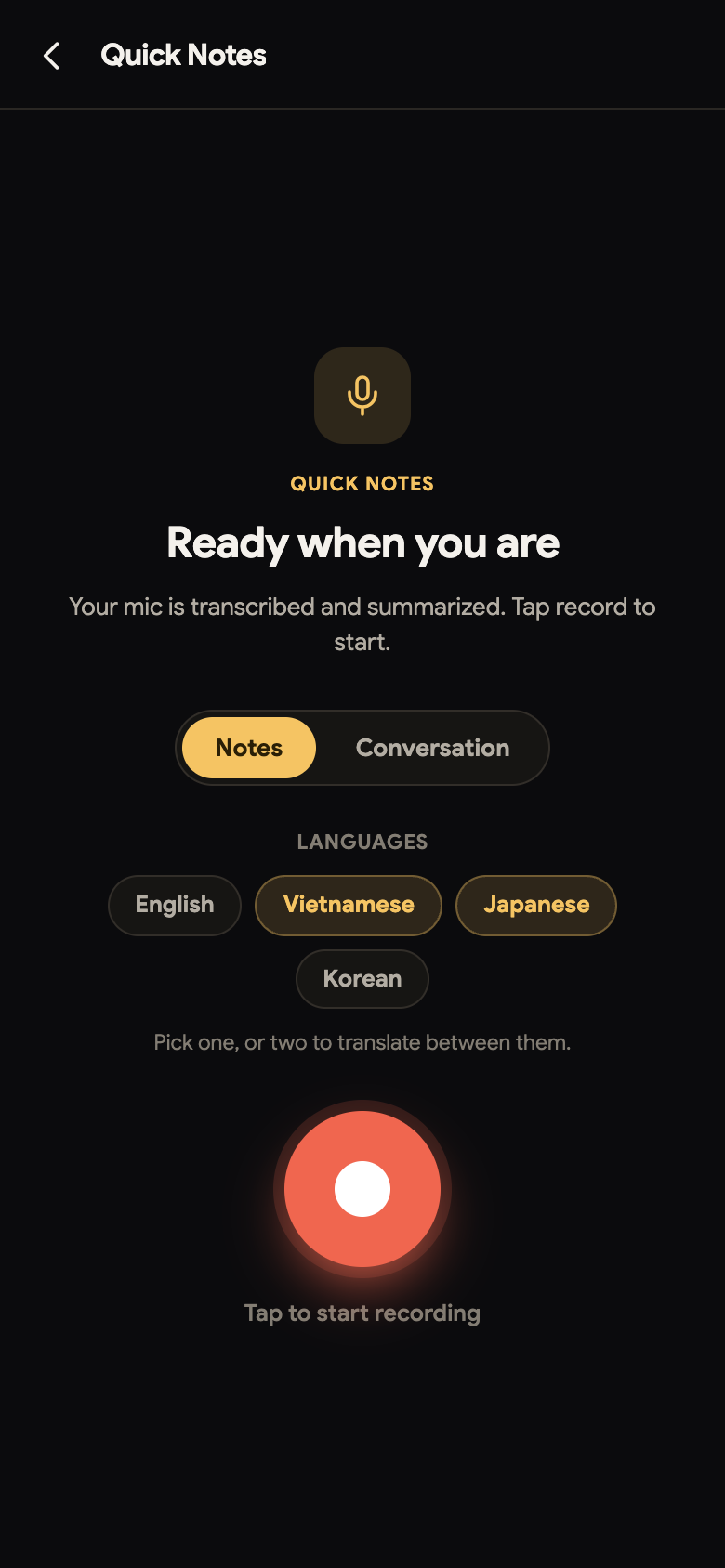 1234
1234- 1The language you speak
- 2The languages others read
- 3Tap to start recording
- 4Keep the sound, or only the text
While you record, the transcript appears on the screen. Each line shows who spoke, with the translation under it. At the bottom you see SCRIBING… and a clock.
When the meeting is over, tap End & save. ScribX asks End this note?:
- End & summarize stops the recording and writes the summary.
- End without saving stops and does not keep the note.
- Cancel goes back to the recording.
The note then appears in your list with the transcript and the summary.
In the Record on this device panel, tap Invite ScribX to a meeting instead. Paste the meeting link, and ScribX joins the Zoom, Microsoft Teams or Google Meet meeting for you. See Send a bot.
Show the text full screen
For a conversation in two languages, tap the Presentation mode button (two panels side by side) while you record. The screen shows one panel for each language, so each person can read in their own language.
- Flip orientation turns the top panel upside down. The person across the table can then read it.
- Swap the panels changes which language is at the top.
- Back to the note closes Presentation mode. The recording continues.
Your notes
The Notes screen shows the same notes as the full site:
- The buttons My notes, Shared with Me and Voice recording change which notes you see.
- The search box finds notes by their words.
- The Source, Team, Time and Status menus filter the list.
- Each row shows the note's name and date, where it came from, and how many people took part.
Tap a row to open the note. The ⋮ button on a row offers Open and Copy link.
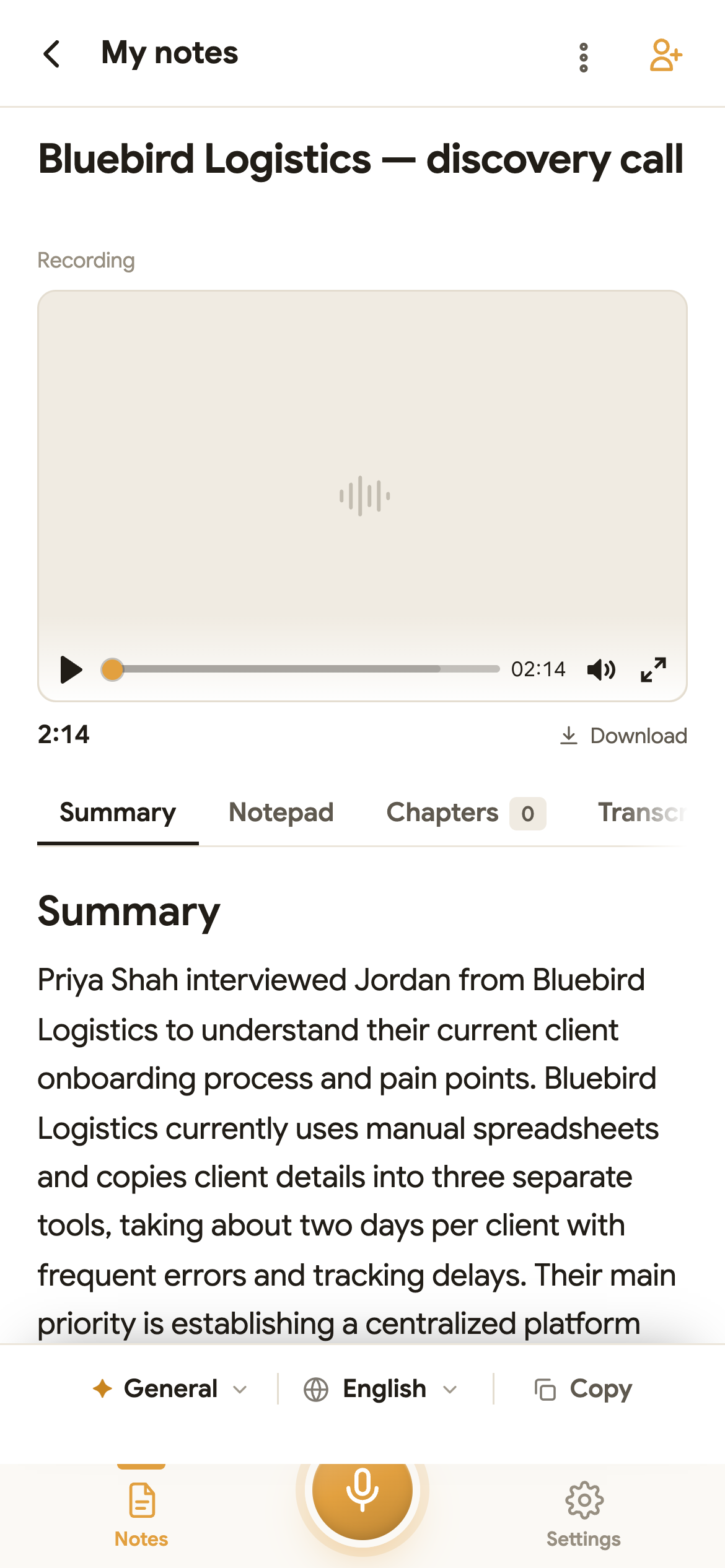 1234
1234- 1Play the recording
- 2Summary · Notepad · Chapters · Transcript
- 3Template, language and Copy
- 4More: reading size, history, trash
A note on the phone has the same tabs as on a computer: Summary, Notepad, Chapters, Transcript and Participants. Swipe the tabs sideways to see them all. The recording plays at the top. The ⋮ button (top right) offers Move to team, Reading size, History of my notes and Move to trash. The person button next to it opens Share.
Settings
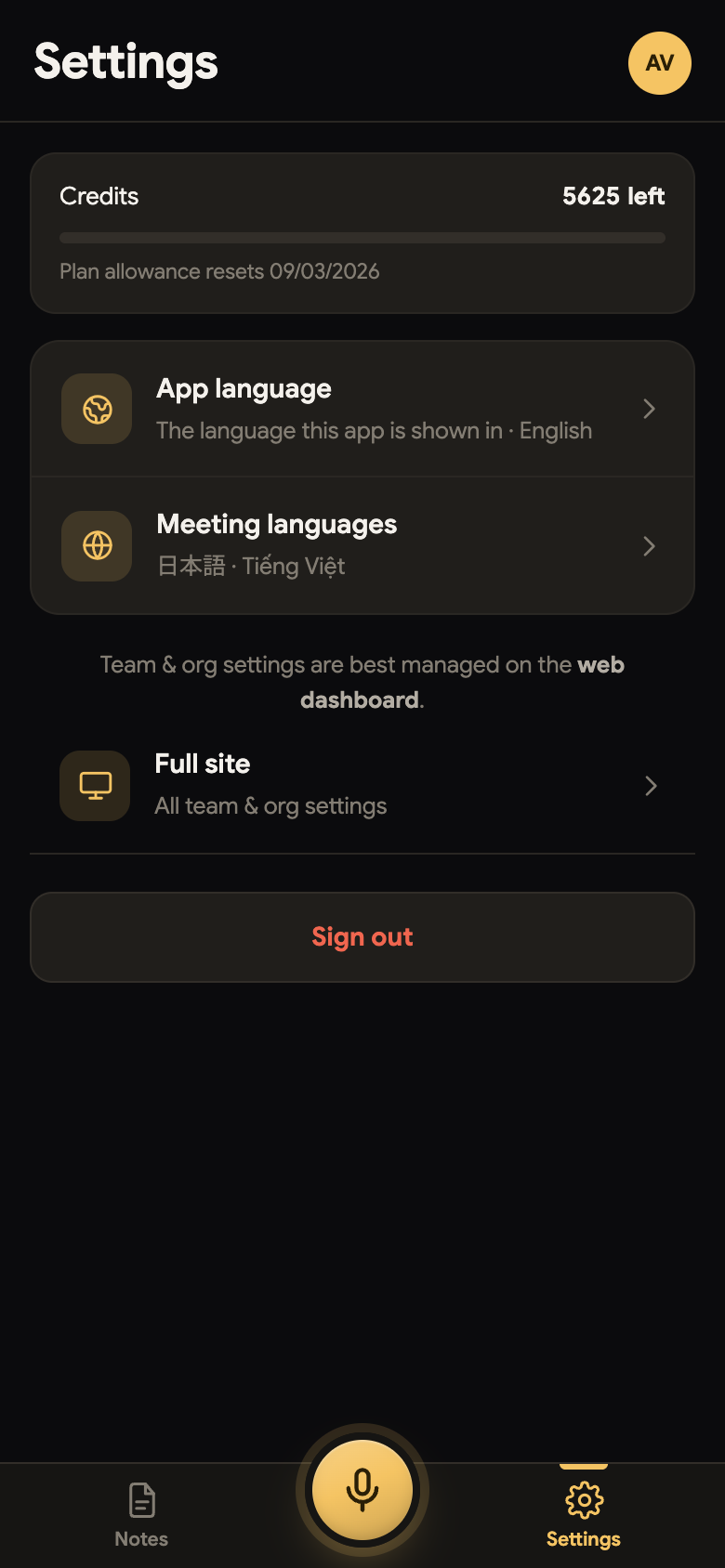
Tap Settings in the bottom bar. The page has two groups:
- Every day: Meeting preferences (languages, the notetaker, recording), Sharing & email (who sees your notes, meeting emails), Appearance (light or dark) and Language. Language is the language of the app itself: English, Tiếng Việt, 日本語, 한국어 or 中文.
- On a computer: Voiceprint, Teams & members and Organization & billing have a Computer label. Open them on a computer. On a phone, ScribX offers to email you a link to open them later on a computer.
Switch to the full site
Some pages exist only on the full site, for example summary templates, calendars, and team and organization settings.
To open the full site on your phone, tap your initials at the top right of the Notes screen, then tap Full site. The phone keeps the full site until you close the browser. When you open ScribX again, it starts in Compact mode.
On a computer, ScribX always opens the full site.