Send a bot (Meet / Zoom / Teams)
When you send a bot, a participant named ScribX joins your call. It records, transcribes and translates while people talk. It leaves when the meeting ends. You can close the tab or leave the call, and you still get the full summary.
Bots work with Google Meet, Zoom, Microsoft Teams and SkyOffice.
Before you start
- Zoom only: connect your Zoom account first. A Zoom bot cannot join until you do. In the sidebar, click Integrations, then the Zoom card. You do this once. See Connect your Zoom account.
- Google Meet and Microsoft Teams need no connection.
- You need the meeting link (see below).
When to send a bot
- The call is planned and you want it recorded automatically.
- You may need to leave early or join late.
- You want the most complete recording. It does not depend on your own connection.
- You want to record a call that you are not in.
Are you already in a Google Meet call, and you only need captions? The extension's live captions are quicker. Not sure? See Choose how to capture.
What the bot does
- Joins the meeting as a participant that everyone can see.
- Records the audio, and the video where possible.
- Transcribes and translates while people talk. You can follow along in the side panel.
- Notes Chapters: decisions, problems and action items as they happen.
- Leaves when the meeting ends. Then it writes the summary.
Find the meeting link
To send a bot, you need the meeting's join link. Where to copy it:
- Google Meet — in the Google Calendar event, copy the
meet.google.com/…link. Or, in the call, click the meeting name, then Joining info, then copy. - Zoom — in the desktop app, open the Meetings tab, pick the meeting, then click
Copy Invitation (or Copy Link). During a call: Participants → Invite → Copy Invite Link.
The link looks like
…zoom.us/j/…. - Microsoft Teams — open the event in your Calendar and copy the Join the meeting link,
or copy it from the invite email. During a call: People → Share invite → Copy meeting link.
The link looks like
teams.microsoft.com/l/meetup-join/….
A link from a forwarded invite works too. You don't need to be the organizer. The host may still need to let the bot in.
Send a bot to a meeting
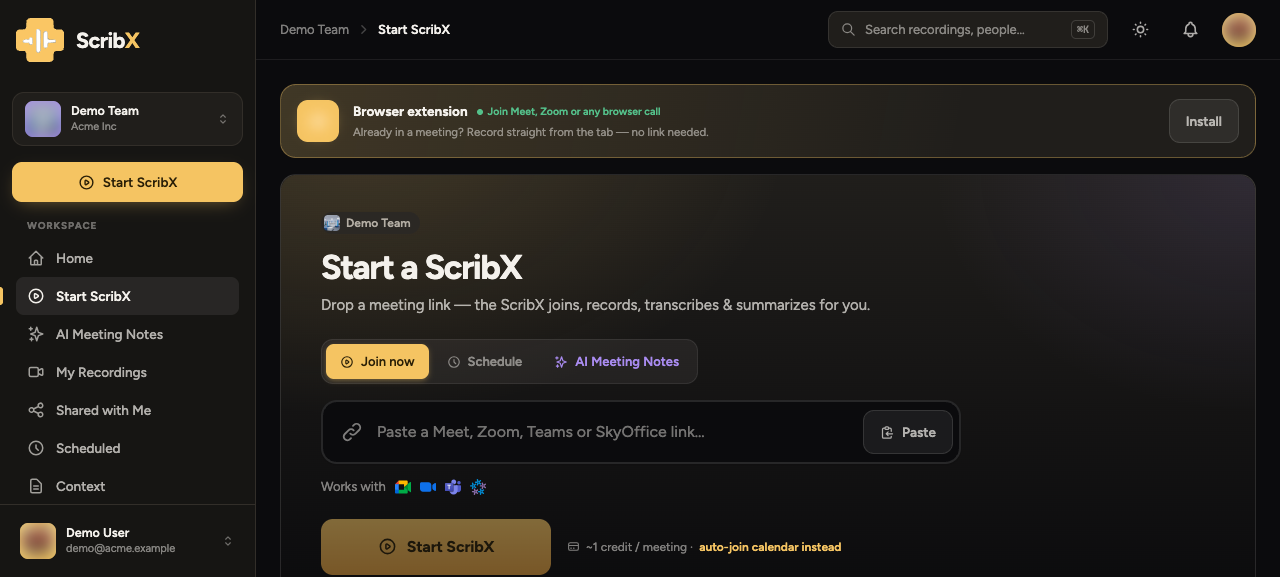 1234
1234- 1Paste the meeting link
- 2Invite ScribX
- 3Meeting languages
- 4Options for this meeting
- In the web app, click New note at the top of the sidebar. An empty note opens.
- Paste the meeting link into the box that says Paste a meeting link. ScribX shows which platform it found.
- If you want, change the language button and Options under For this meeting: (see below).
- Click Invite ScribX.
If ScribX is already in that meeting, the note tells you. You join that session instead of sending a second bot.
The bot joins within a few moments and appears in the participant list. A meeting costs 1 credit per minute. See Credits & usage. A bot that nobody lets into the meeting costs nothing.
Configure the capture (optional)
These settings apply to this meeting only. They start from your Meeting preferences.
- Languages — the language button. Choose your language and the languages that other people read the meeting in. See Languages.
- Transcription (in Options) — ScribX AI is the default. ScribX listens and transcribes the meeting itself. It is more accurate and can translate for other readers. Basic uses the captions that Meet, Zoom or Teams already make. It is less accurate and supports up to two languages. When you choose Basic, the settings line shows · Basic.
- Record — Video, Audio or Transcript only. The transcript and summary are always kept.
- Context — add a context for this meeting.
- Brief — a few lines for the AI: the agenda, who is who, what to listen for.
- Summary template — the layout of the summary. General is the default. See Summary templates & ScribX layout.
Track the bot's status
The bot goes through these states:
- Joining — connecting to the call, or waiting to be let in.
- In meeting — recording and transcribing.
- Ended — the bot left the call. ScribX is writing the note.
If the bot can't join, the note shows the reason. For example: nobody let it in, or the link is wrong. You can send it again: paste the link on a new note and click Invite ScribX. See Manage the bot in-call.
Schedule it instead of joining now
For a meeting that starts later, connect your calendar. The meeting appears under Upcoming in the sidebar. There you choose which meetings ScribX records. Or turn on auto-join, and ScribX records them all.