The extension popup
The popup is the small ScribX window that opens when you click the ScribX icon in your browser toolbar. Use it to check that you are signed in, to choose the team where new notes are saved, and to start ScribX in the meeting you are in.
Before you start
- Install the extension and pin the ScribX icon to your toolbar.
- The extension works in Chrome and other Chromium browsers, such as Microsoft Edge, Brave and Arc.
Open the popup
Click the ScribX icon in your browser toolbar. If you don't see it, click the puzzle-piece icon (Extensions) and then ScribX.
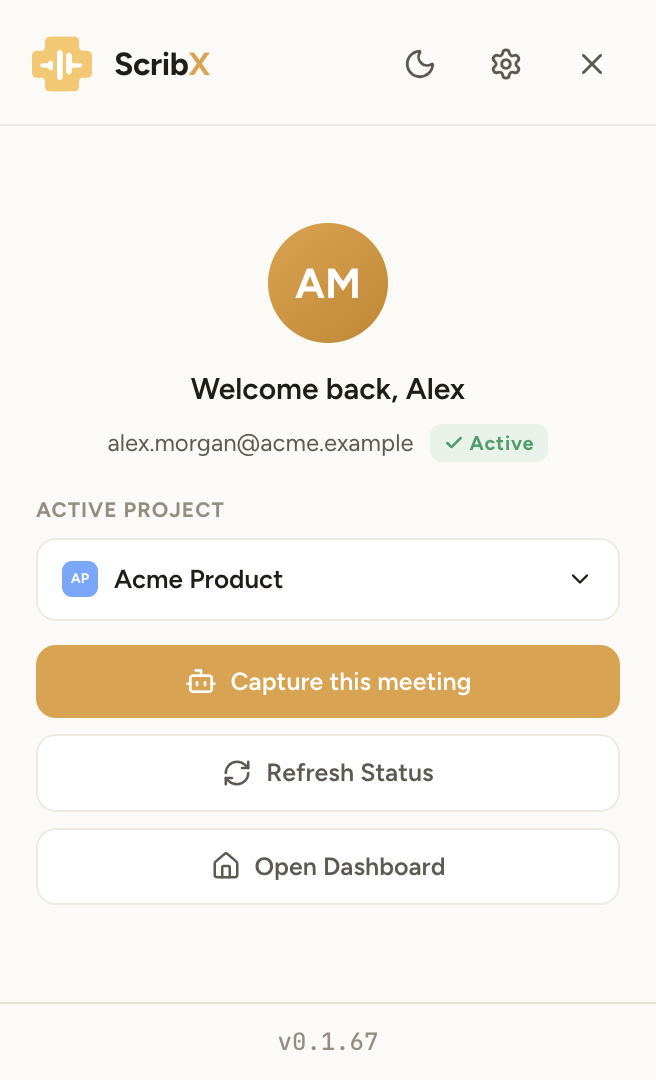 123456
- 1Light or dark theme
- 2Settings
- 3Active project: where notes are saved
- 4Capture this meeting
- 5Refresh Status
- 6Open Dashboard
The extension works in Google Meet and in Zoom in the browser. It does not work in the Zoom or Microsoft Teams desktop app. For those, send a bot from the web app.
The top of the popup
- Moon / sun icon — switch between the dark and the light theme.
- Gear icon — open the extension settings.
- × — close the popup.
When you are signed in
The popup shows your initials, "Welcome back" with your first name, your email and a green Active label.
Choose where notes are saved
Under Active project, click the menu and pick a team, or My Personal Space for notes only you can see. New notes from the extension are saved there. ScribX remembers your choice for next time.
Choose the team before you start ScribX, so the note is saved in the right place. You can also change it in the Bring ScribX in window before the bot joins.
Capture this meeting
- Open the meeting tab in Google Meet or Zoom.
- Click the ScribX icon, then Capture this meeting.
- The popup closes and the Bring ScribX in window opens in the meeting. See Capture from the extension.
If the tab is not a meeting, nothing happens. Open the meeting tab first.
Other buttons
- Refresh Status — check again that you are signed in. Use it after you sign in or out in the web app.
- Open Dashboard — open the ScribX web app.
To sign out, open the extension settings and click Sign out.
When you are signed out
- Sign In — opens the ScribX sign-in page. See Sign in.
- Have a share link? — for guests without an account. Paste the share link from the host into the box. ScribX then asks for the passcode. After you type it, you see Guest session active. Open the side panel to read the transcript. Guest access is view-only. See Access requests & guest access.
The extension's version number is at the bottom of the popup, for example v0.1.67.