Live Companion
Live Companion is a small, narrow window. It shows a meeting while it happens: the transcript, the translation and the summary so far. You can put it next to your meeting app. It is part of the web app, so it works with every meeting: Zoom or Microsoft Teams in the desktop app, Google Meet, or a voice recording with no online meeting.
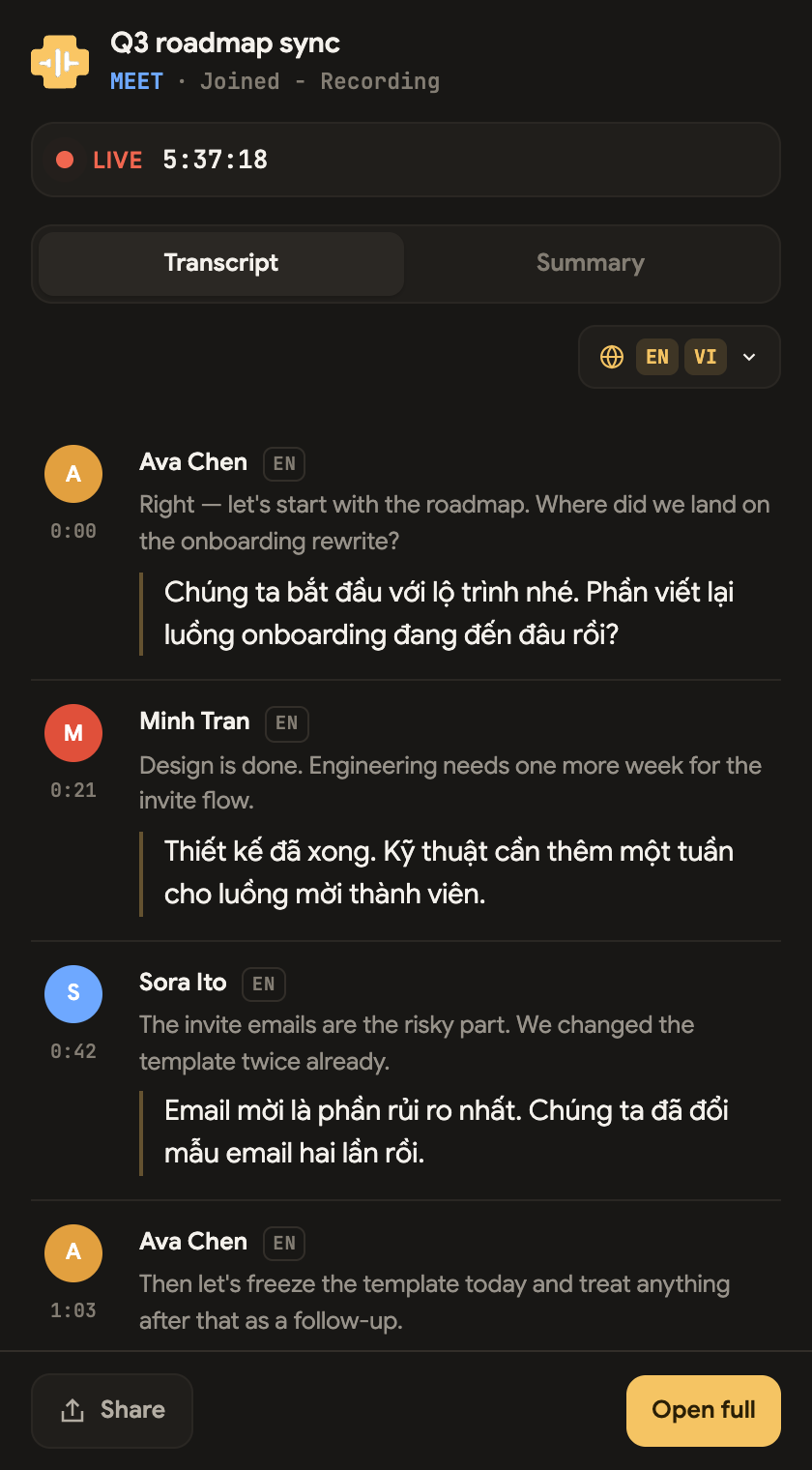 12345
12345- 1Meeting name and state
- 2Transcript · Summary · Notepad
- 3Languages to show
- 4Share the Companion
- 5Open the full note
The browser extension works only with meetings that run in a browser tab. If your team usually uses the Zoom or Teams desktop app, use the Companion to read along: send ScribX to the meeting and keep the Companion or the note open next to the meeting.
Open it
For a voice recording (in Chrome):
- Start a voice recording on the note page.
- In the recording bar on the right, click the Floating recorder button (a small window icon).
- A small window opens. It stays on top of your other windows, also when you go to another tab. It shows the live transcript and the recording controls.
To bring the recording back to the page, click Bring it back here, or return to the note's tab.
For a meeting that ScribX joined:
Open the meeting's note in the web app. Make the browser window narrow and put it next to Zoom or Teams. The note page fits itself to a narrow window, and the transcript appears as people speak.
From a Companion link:
If the owner of a meeting shares its Companion link with you, open the link. It opens the Companion for that meeting.
What's in the window
The top: the meeting name, the kind of meeting, and its state. The state shows Live with a running clock while the meeting runs, and Ended when it is over.
Transcript: the same live transcript as the note page. Each line shows who spoke and when. New lines appear as people talk.
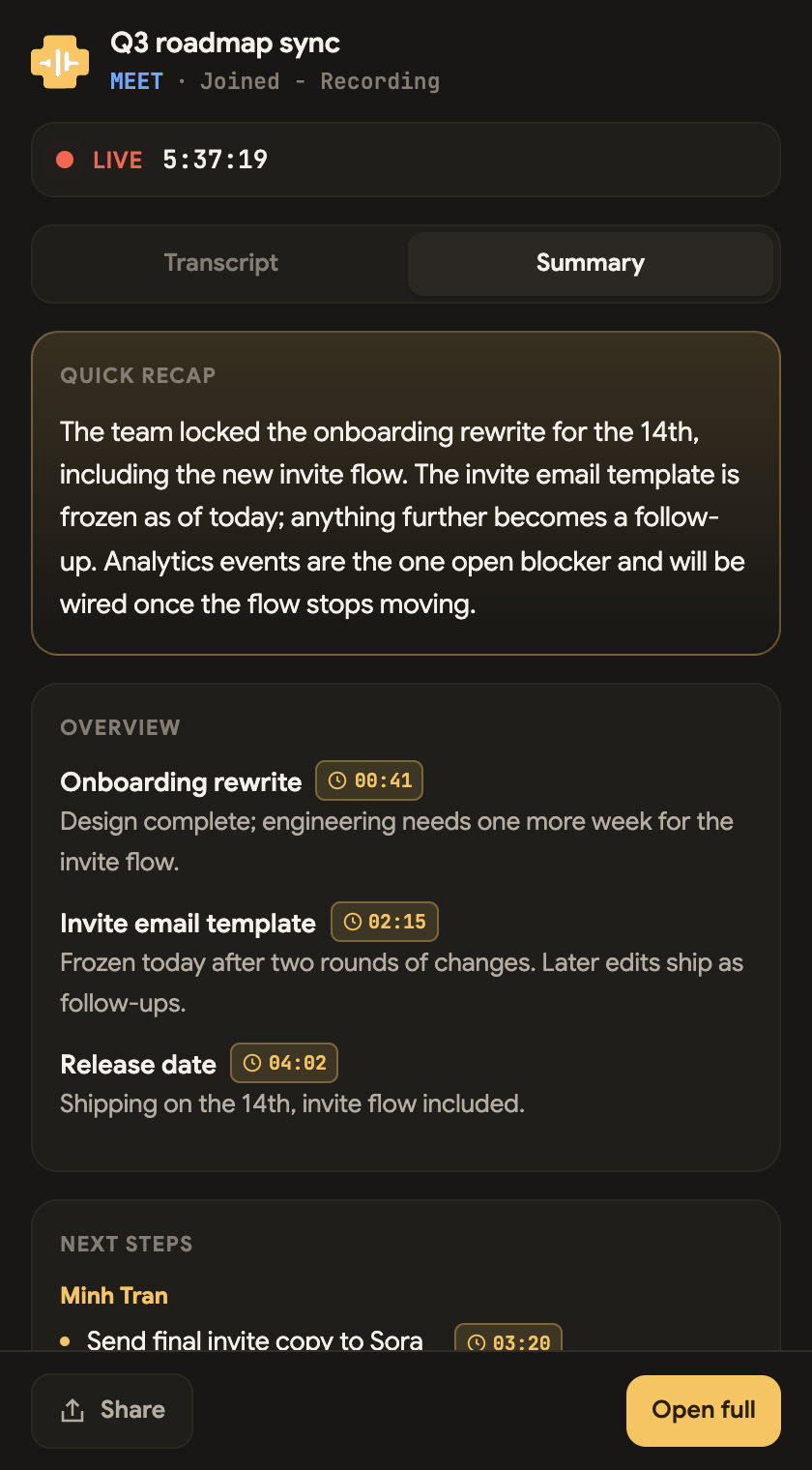
Summary: the summary so far, with the decisions and next steps. Many points have a time, for example 01:57, that shows when it was said.
Notepad: your own notes for the meeting, for example the agenda. It is the same notepad as on the note page. ScribX adds what you write to the AI summary at the end.
Read it in your language
Click the globe button above the transcript. It opens Languages to show. This choice is only for you. The person next to you can read the same meeting in another language.
- Choose one language: each line shows only that language.
- Choose two or more: each line shows the original first and the translation under it.
- You cannot remove the last language. There is always something to read.
You can choose from the languages that were set when the meeting started. See Languages.
Share the Companion
The owner sees a Share button at the bottom of the window. Click it to copy the Companion link. You can paste it into the meeting chat.
Someone who opens the link without access sees Access restricted and a Request access button. Their request appears in your Companion with Approve and Deny. When you click Approve, their window shows the live transcript at once. They do not need to reload the page. See Access requests.
Open the full note
Click Open full at the bottom of the window. The note opens in a new tab with the player, the full summary, sharing, participants and editing. Use the Companion to read along during the meeting. Use the full note to work with the meeting afterwards.