Summary templates & ScribX layout
The write-up follows a summary template: the list of sections ScribX writes and how each one looks. Every meeting uses General unless you choose another template. For a different kind of meeting — a customer call, a one-on-one, an interview — choose the template that fits. Or choose ScribX layout: then ScribX chooses the sections itself, based on what was said in the meeting.
The six templates
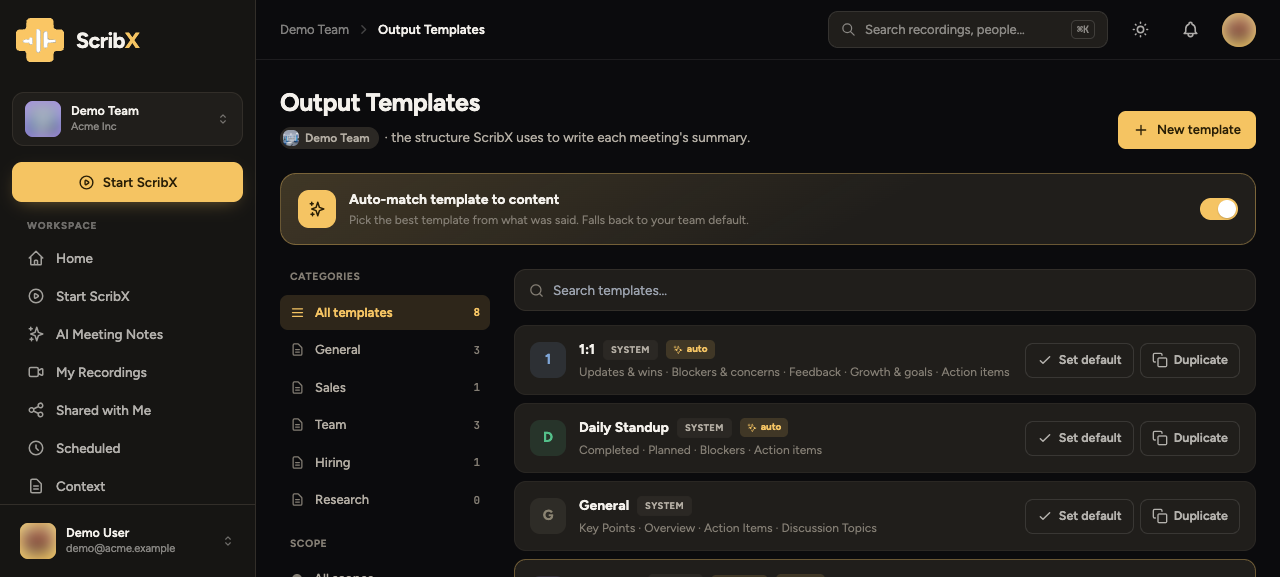 1234
1234- 1The Summary Templates tab
- 2General — used unless you choose another
- 3ScribX layout — an AI-designed report, 10 credits
- 4The sections a template writes, and their form
You see the templates in the same order everywhere, each with its own icon:
| Template | Written for | What it writes |
|---|---|---|
| General (default) | Any meeting | Attendees · Summary · Decisions · Action items · Details · Next meeting |
| ScribX layout | Any meeting — ScribX decides the shape | Its own sections, tables, diagrams and a task checklist (below) |
| Progress update | Stand-ups, weekly syncs, project reviews | Done, next, blockers and risks — for the team or each person |
| Discovery call | Sales and customer conversations | Needs, budget and decision-makers |
| One-on-one | A manager and a team member | Progress, blockers and growth |
| Interview | Hiring | Strengths, concerns and a recommendation |
In General, Attendees lists the people who really took part, not everyone who was invited. The Next meeting section appears only when the meeting planned a next one.
To read what a template will write, open AI context in the sidebar and choose the Summary Templates tab. Click a template to see its sections and the form each one takes.
Formal minutes, Stand-up and Retrospective are retired. Stand-ups and project updates are now one template, Progress update. Summaries written with a retired template keep their name and their content.
Choose a template for a meeting
Each meeting uses General unless someone chooses another template for it. There is no default template for a team, and ScribX does not choose a template for you.
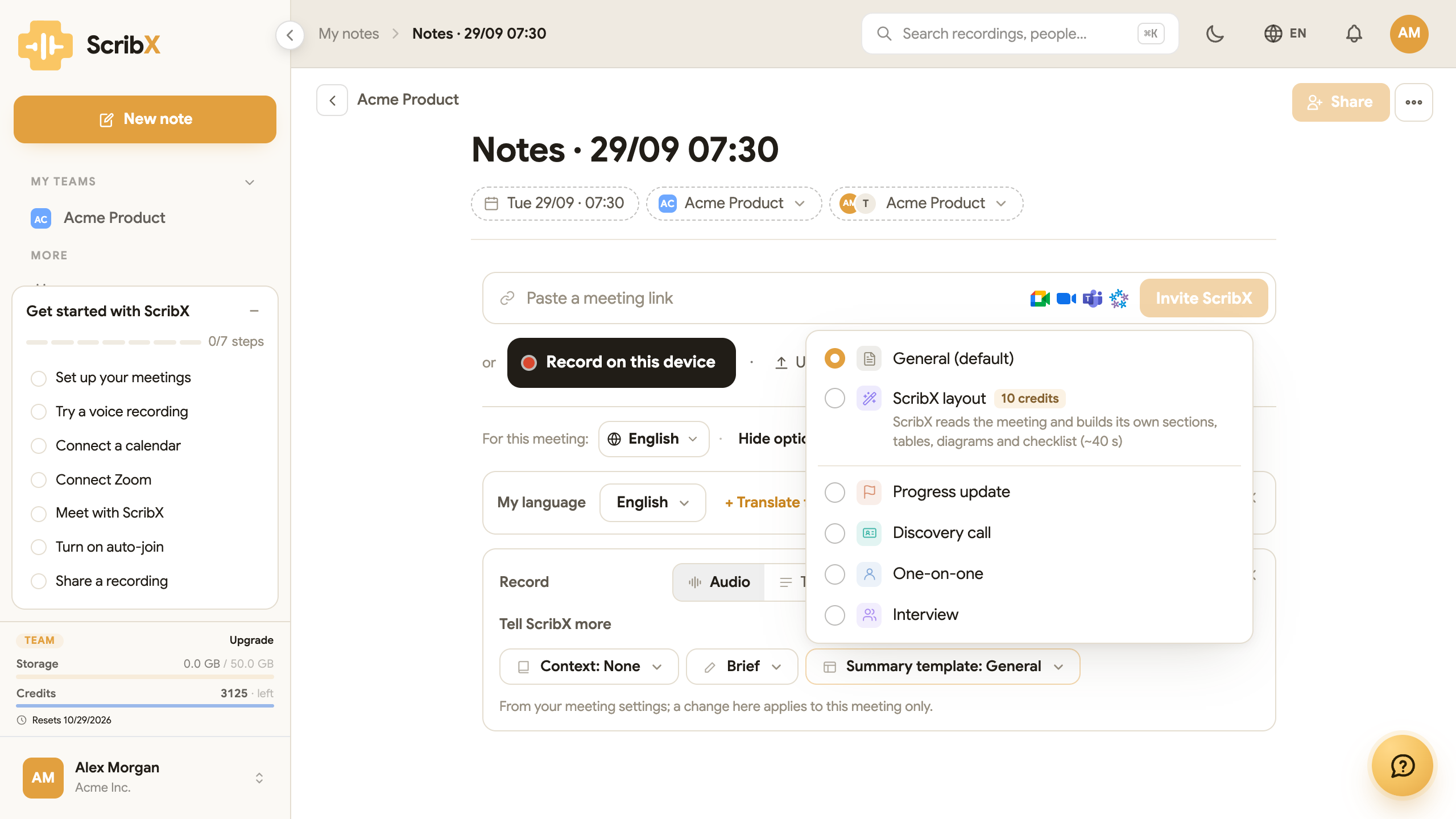 12
12- 1Summary template — opens the list
- 2ScribX layout, with its price
Before the meeting
- On the new, empty note, open Options.
- Click Summary template and choose a template.
You can also choose a template in the options when you send a bot, and in the browser extension.
After the meeting
- Open the note and stay on the Summary tab.
- In the small toolbar above the summary, click the template button. It shows the name of the current template, for example General.
- A menu opens. Its title is Regenerate with…. Choose a template.
ScribX writes the summary again from the same transcript. You do not need to record the meeting again.
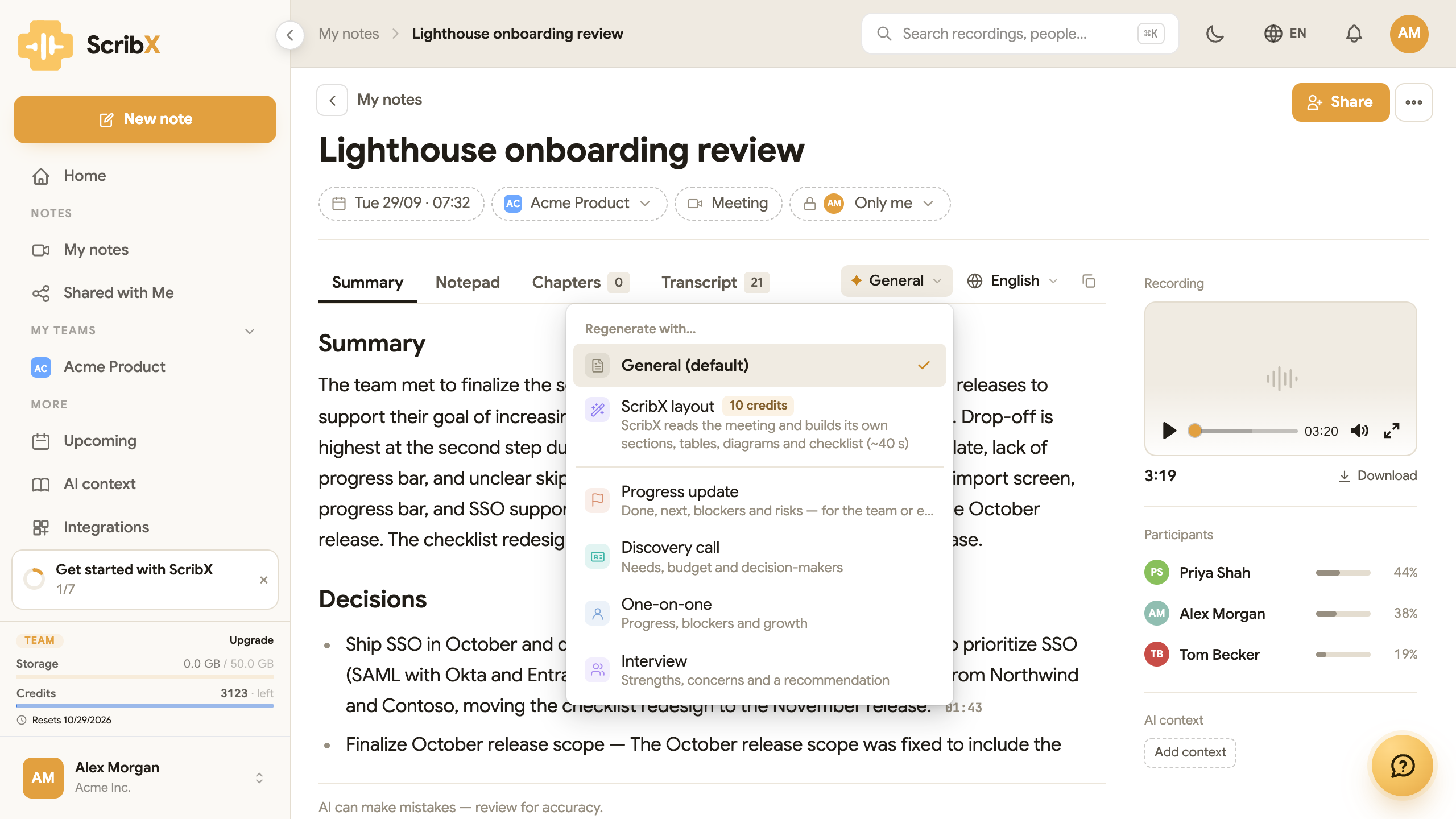 12
12- 1The template button
- 2Regenerate with… — pick another template
The old summary is not lost. It moves to the version history, with your own edits, and you can restore it from there.
ScribX layout
BetaScribX layout has no fixed list of sections. First, ScribX reads the whole meeting. It decides what kind of meeting it was and who will read the summary. Then it writes the summary in the form that fits best:
- Headings that say the main point — for example "Launch moves to October", not "Discussion".
- The best form for each part — normal text, a table, a flowchart or mind map, or a quote.
- The whole meeting — a long meeting is covered to the end, not only the first half. Each point links to the moment it was said.
- Action items as a checklist, with owners and dates where they were said.
- "What this means for us" — only when your team's context gives ScribX enough information. ScribX marks this part as its own conclusion.
- Uncertain points — things the transcript does not make clear. ScribX says so and does not guess.
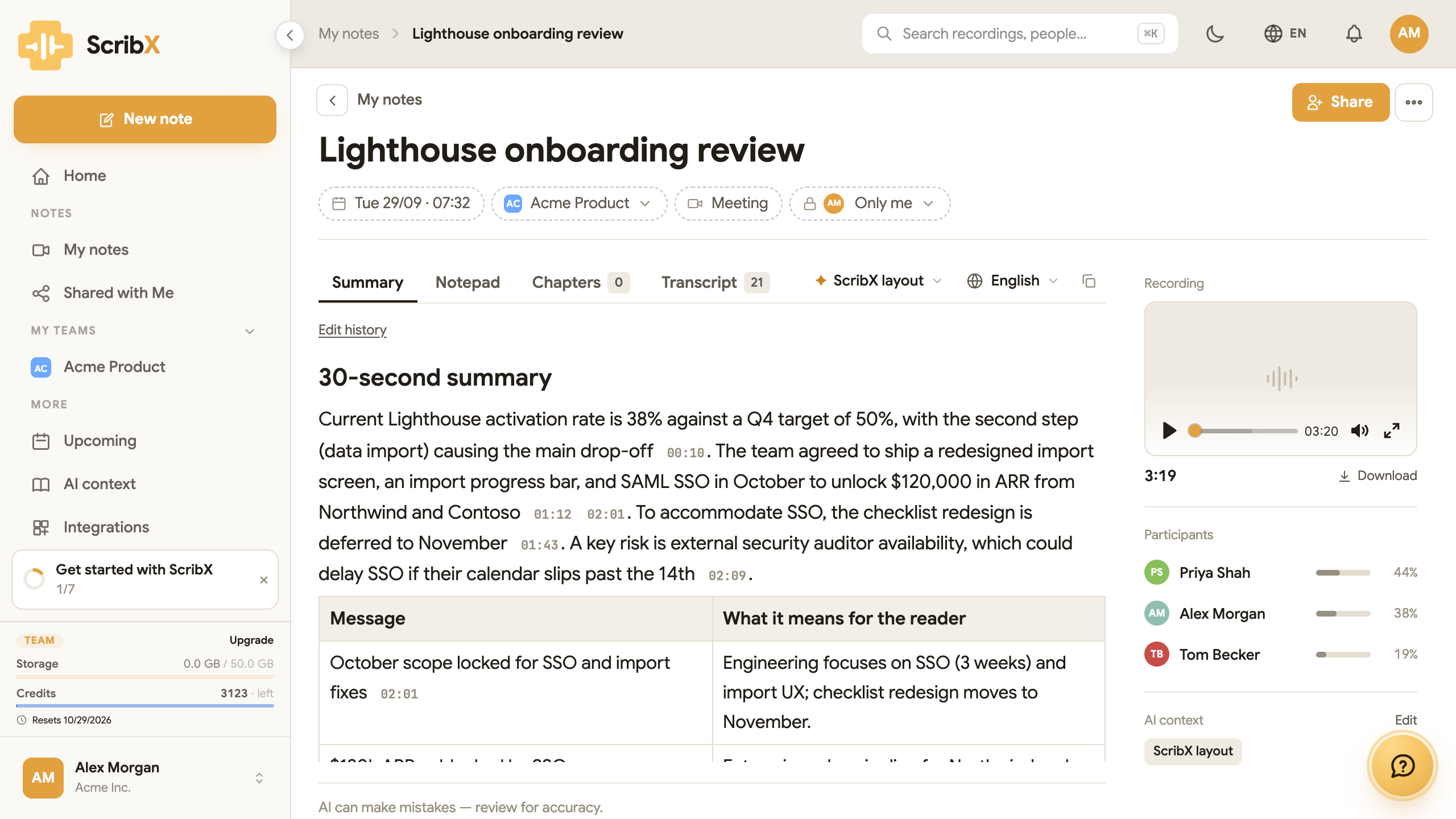 123
123- 1The template button shows ScribX layout
- 2Every [MM:SS] opens the transcript at that moment
- 3A table where a table reads best
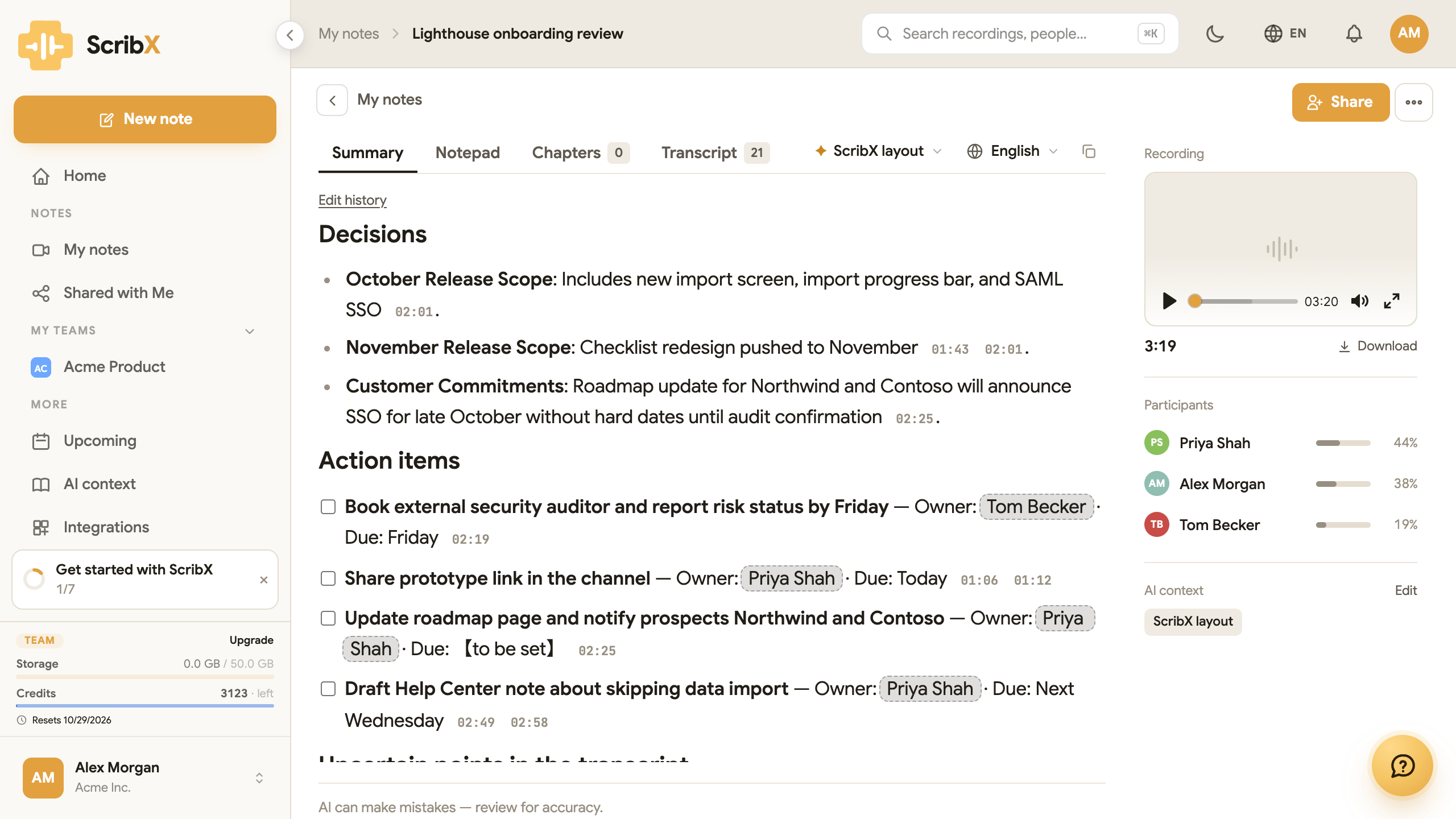
It costs 10 credits per meeting. You see this price next to it in every list. Translating this summary into another language, or writing it again, costs nothing more. All other templates are free. A ScribX layout summary takes about 40 seconds.
To see how many credits you have left, look at the Credits meter at the bottom of the sidebar. See What is a credit?.
ScribX layout is being switched on gradually. Where it is not available yet, it does not appear in the lists, and a meeting that asked for it is written with General instead.
Combine a template with context
A template decides the sections of the summary. Context & glossary help ScribX write the names, products and terms inside it correctly. Use both together: for example, a Discovery call summary with your product glossary spells your product names correctly.
Teams cannot write their own templates in the app yet. If your organization needs a template of its own, contact us.