Chapters
Chapters split a meeting into parts. Each chapter has a start time and a few sentences about what people said in that part. Read the chapters to find an important moment quickly, without listening to the whole recording.
When chapters appear
- ScribX writes chapters during the meeting. The first chapter appears after about a minute of talk. New chapters follow as the meeting goes on.
- You can read them live in the extension panel, in the Live Companion, and on the note page.
- After the meeting, they stay on the Chapters tab of the note page.
Older screens
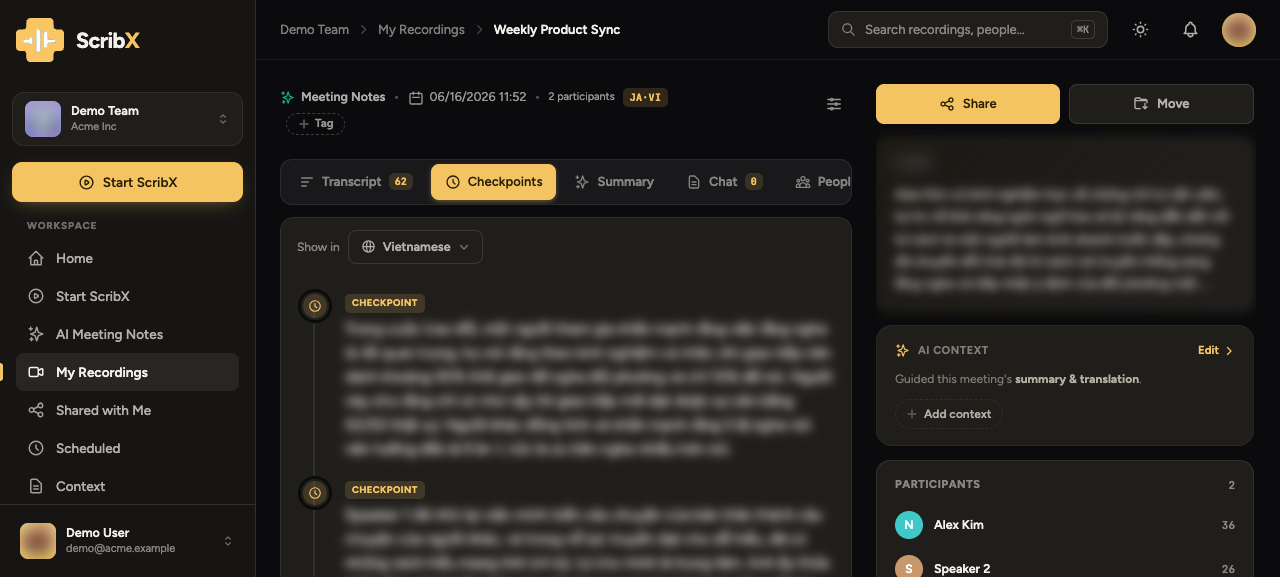
A few older screens, such as the phone view, still call chapters Checkpoints. They are the same thing.
Open the Chapters tab
- Open the meeting's note page.
- Click the Chapters tab. The number next to it tells you how many chapters there are.
 1
1- 1Start time and a short summary
What you'll see
- A start time on the left, for example
5:00. - A short summary of that part of the meeting on the right.
- While the recording plays, the chapter you are hearing is highlighted.
Find a moment in the recording
- Read the chapters and find the part you need. Note its start time.
- Open the Transcript tab.
- Click a line near that time. The player on the right jumps to that moment.
Change the language or copy the chapters
Under the tabs, a small bar has two buttons:
- The language button (it shows the language, for example English) — read the chapters in another of the meeting's languages.
- Copy — copy all chapters, with their start times, and paste them into an email or document.