Capture from the extension
When you are in a Google Meet or Zoom call in your browser, you can start ScribX right there. You don't need to open the web app. You can invite a bot, or (in Google Meet) read live captions with no bot.
Before you start
- You join the meeting in your browser. The extension does not work in the Zoom or Microsoft Teams desktop app. For those, send a bot from the web app.
- The ScribX extension is installed and you are signed in.
Step 1: Find the ScribX bar
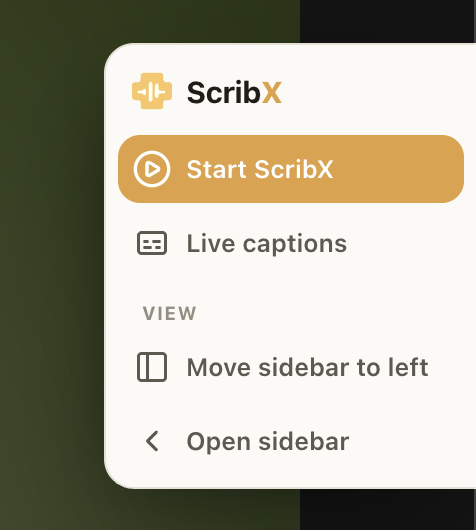
When the meeting page opens, a narrow ScribX bar appears on the edge of the page, with the ScribX logo at the top. Move the mouse over the bar to see the button names.
 12
12- 1Start ScribX: invite a bot
- 2Live captions: no bot joins
You can also click the ScribX icon in your browser toolbar and click Capture this meeting. See The extension popup.
Step 2: Choose how to capture
- Start ScribX — a bot joins the call. It records, transcribes and translates with the best accuracy, and makes a summary. The meeting is saved to your library. See Send a bot.
- Live captions — no bot joins. ScribX reads the captions that Google Meet makes, right in the side panel. It is fast and private, but less accurate. You must turn on CC in Google Meet first. This option is only for Google Meet. See In-meeting captions.
Step 3: Check the options and start
After you click Start ScribX, the Bring ScribX in window opens. It starts from your meeting settings, so you can usually just click Invite ScribX. Changes here apply to this meeting only.
- Save recording to — the team (or your personal space) where the note is saved. Everyone in a team can see the notes saved in that team.
- My language — the language you read.
- Translate for others — turn this on if other people read other languages. Then use Others read in and Add to pick their languages. Each extra language can use more credits.
- Options for this meeting — click to see more:
- Recording — Video, Audio, or Transcript only.
- Transcription — ScribX AI (more accurate, can translate for others) or Basic (uses the meeting's own captions, up to 2 languages).
- Read the translation aloud, Translate slides.
- Context, Tags and Brief — extra information that helps ScribX spell names right and write a better summary. See Context & glossary.
- Settings — opens your meeting settings in the web app.
Click Invite ScribX to start, or Cancel to close the window. In Live captions mode, the button is Start live captions.
Step 4: Wait while the bot joins
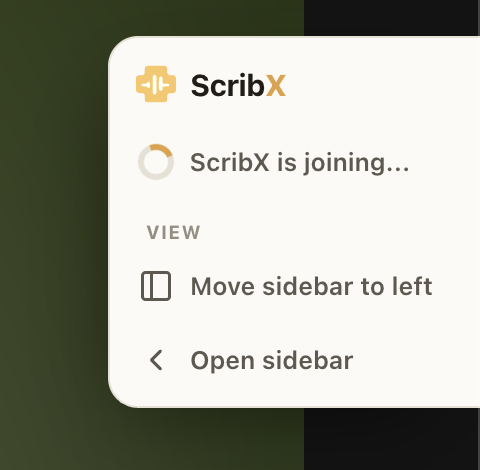
The ScribX bar shows ScribX is joining... while the bot enters the call. If the meeting has a waiting room, the host must let the bot in. When the bot is in, the live transcript starts in the side panel.
Step 5: Use the controls while ScribX records
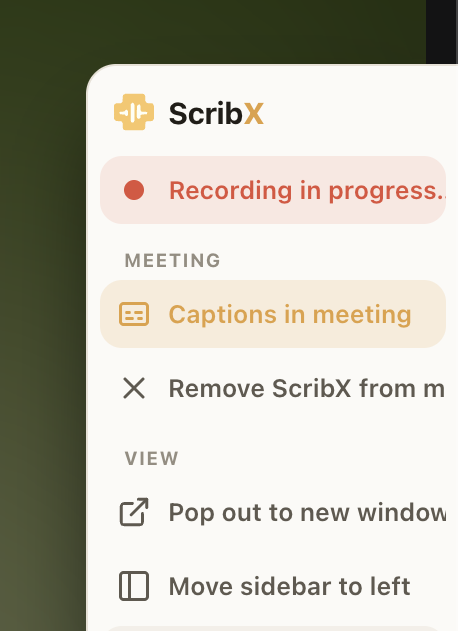
When the bot is in, the ScribX bar shows Recording in progress and more buttons:
 123
123- 1Captions in meeting: show or hide
- 2Remove ScribX from meeting
- 3Pop out to new window
- Captions in meeting — show or hide live captions over the video.
- Remove ScribX from meeting — stop recording. ScribX asks you to confirm, then the bot leaves.
- Pop out to new window — open the transcript in a large, separate window. See Focus mode.
- Move sidebar to left / right — put the ScribX side panel on the other side of the meeting.
- Open sidebar — open the side panel with the live transcript, the translation and the chapters.
In the side panel you can also click Pause and Stop.
Started with Live captions and now want a recording and a summary? Open the ScribX bar again and click Start ScribX.
If someone else already started ScribX in this meeting, ScribX tells you. You can follow their transcript instead of adding a second bot. A second bot can make two recordings of the same meeting.
If you reload the meeting tab by mistake, the bot stays in the call. ScribX shows Restoring session... and then your live transcript again.