Record from this device
Some meetings have no link for a bot: a meeting in a room, a talk across a desk, or a webinar in another tab. For these, ScribX can listen to your microphone, or to the sound of a browser tab you share. It transcribes, translates and summarizes the recording like any other capture. No bot joins, nobody new appears in the participant list, and you need no meeting link.
The recording opens as a note, like every other capture. You can type your own notes while it runs. When you end it, the summary appears on the same page.
When to use it
- A meeting in a room. Put your laptop or phone on the table.
- A webinar or call that plays in another browser tab.
- A quick conversation that was not planned.
- A meeting where you don't want a bot to join.
Before you start
- Use Chrome, Edge, Brave or Arc on a computer, or a phone browser.
- The first time, your browser asks to use your microphone. Click Allow.
Start a recording
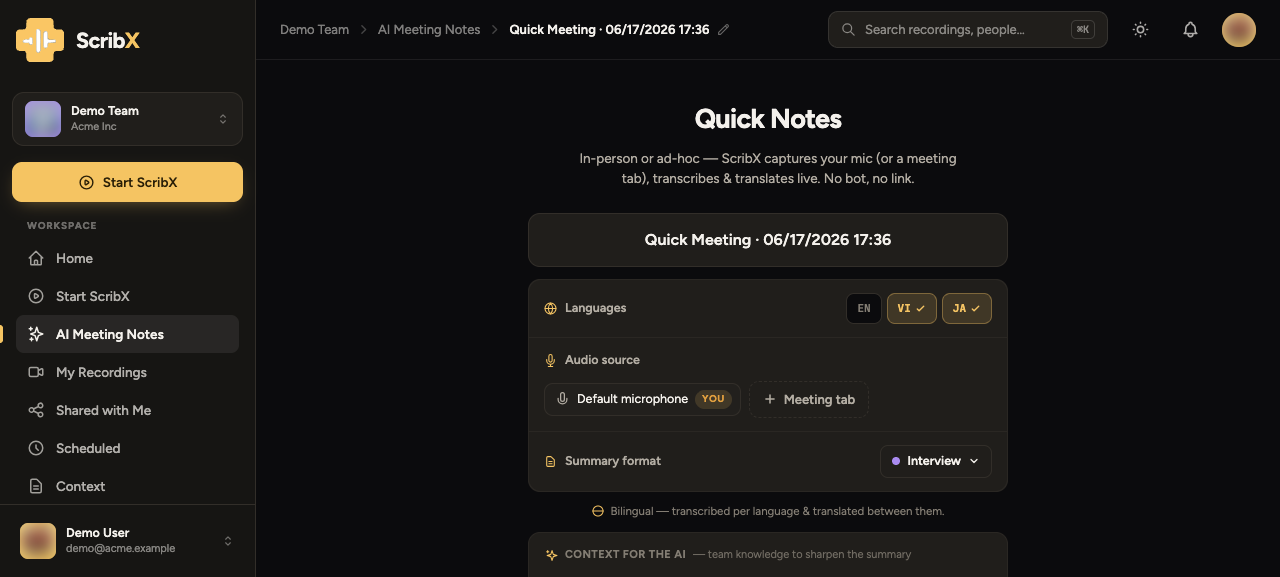 1234
1234- 1Record on this device
- 2Meeting languages
- 3Record: Audio or Transcript only
- 4Context, brief, summary template
- In the sidebar, click New note. An empty note opens.
- (Optional) Under For this meeting:, click the language button to choose the
languages. Click Options to choose:
- Record: Audio keeps the sound, Transcript only keeps only the text.
- A context, a Brief for the AI, and the summary template.
- Click Record on this device.
- If the browser asks to use your microphone, click Allow. The recording starts. The Recording panel on the right shows the clock and the sound level.
- (Optional) To record a browser tab instead of your microphone, click Add a tab in the Recording panel. The browser asks which tab to share. Pick the tab, turn on Share tab audio, and click Share. While a tab is shared, your microphone is off. If the sharing stops, ScribX shows Tab sharing stopped with a Share again button.
If you clicked Block by mistake, ScribX says "The browser blocked the microphone." Click the icon at the left of the address bar, allow the Microphone, then try again.
While it's running
The note shows the live transcript next to your Notepad. The Chapters and the Participants have their own tabs. The Recording panel on the right has the clock, the sound level, the language button, Pause and End.
- Go to another tab, and in Chrome a small floating recorder opens on top of your other windows. It shows the clock, the controls and the live transcript. It closes when you come back.
- Leave the page during a recording, and ScribX asks you first.
- Reload the page, and the microphone starts again by itself if you already allowed it.
On a phone, you can also use a recording as a face-to-face translator for two people. See Compact mode.
End and find your note
- In the Recording panel, click End.
- Click End recording. ScribX writes the summary on the same page.
The note is already in My notes in the sidebar. See My notes. If you don't want to keep the recording, click End without saving instead. The note goes to the Trash, where you can still restore it.
For meetings in a room, a glossary of names and terms helps a lot. Sound in a room is harder to transcribe than sound from a headset.
A recording made on this device separates the voices and calls them Speaker 1, Speaker 2, and so on. To name a speaker, click them in the Participants list and type the name. The name is used everywhere in the note.
Limits and cost
- Number of recordings: 10 per cycle on Free, 100 on Pro and Team.
- Length: up to 30 minutes on Free, 60 minutes on Pro and Team. At the limit, the recording stops and is saved.
- Cost: 0.5 credits per minute, half the cost of a bot meeting.
Both limits apply: a recording uses one of your recordings for the cycle, and credits for its minutes. See Plans & billing.