Share recordings
When you share a meeting, other people can open its note, summary, transcript and recording. The Share window on the note page controls who can open it.
Who can see a new recording
Where you make a recording decides who can see it at first:
- In a team (for example "Acme Product") — everyone in that team can open it as a Viewer.
- In your own space (the note shows Not in a team yet) — only you can open it.
Two settings can add more people automatically:
- Auto-share with participants — people who joined the meeting get Viewer access. ScribX matches them by email. This is on by default. A team admin changes it in the team's settings.
- Also share team recordings with the whole organization — everyone in your organization can open your team recordings. This is off by default. You turn it on in Profile & settings → Sharing & email. A team can also choose one setting for all its members.
After that, you decide for each meeting. You can share it with more people, or limit it again.
Access levels
Each person gets one of two roles:
- Viewer — can read the summary and transcript, and play the recording.
- Editor — can also edit the transcript, rename speakers and create the summary again.
The person who captured the meeting is its owner. The owner can always do everything.
Open the Share window
- Open the meeting's note page.
- Click Share at the top right.
You can also share from the extension panel during a meeting.
 123
123- 1Add people, or a domain like @partner.com
- 2General access — who else can open it
- 3Copy a link, or preview as a guest
Add specific people or a company domain
- Click the field Add a person, a team or @domain.com.
- Type a name or an email address. ScribX suggests matching people. Pick one.
- To share with a whole company, type the end of its email addresses, for example
@yourcompany.com. Everyone with an email at that company can then open the meeting.
- To share with a whole company, type the end of its email addresses, for example
- Choose Viewer or Editor in the menu under the field.
- Add more people if you need to. You can remove a name with its × before you continue.
- Click Share.
Nothing is shared until you click Share. Then ScribX sends each new person an email about it. To stop, click Cancel — nobody gets access and nobody gets an email.
In the same window, turn on Auto-share with participants to give Viewer access to everyone who joined the meeting.
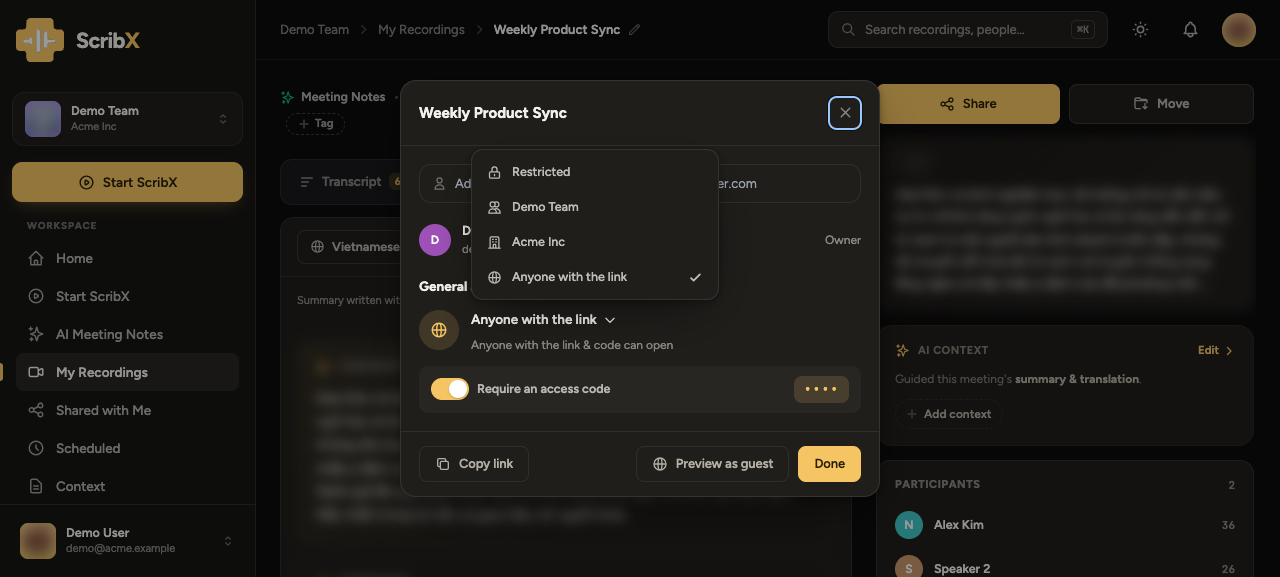
Set General access
General access decides who, besides the people you added, can open the meeting. Open the General access menu and choose one option:
| Option | Who can open it |
|---|---|
| Restricted | Only the owner and the people and domains you added. |
| Your team (shows the team name, e.g. "Acme Product") | Everyone in this team. A team recording starts here. |
| Your organization (shows the name, e.g. "Acme Inc.") | Everyone in your organization. |
| Anyone with the link | Anyone who has the share link (and the access code, if you set one). They do not need an account. |
For your team or your organization, you can also choose Viewer or Editor for everyone in it. Anyone with the link is always view-only.
You cannot use Anyone with the link together with the team or organization options. When you choose one, the other turns off.
Click Preview as guest to see the meeting exactly as an outside viewer will see it. Do this before you send the link.
Move a note to another team
Did you capture the meeting in the wrong team? On the note page, click the team button under the title (it shows the team name) and choose another team or a folder. Everyone in the new team can then open the recording.