Install the extension
The ScribX browser extension adds a ScribX side panel to your meetings in Google Meet and in Zoom in the browser. From the panel you can start ScribX, read the live transcript and translation, and share the meeting. Install it once in each browser you use.
The extension works when you join the meeting in a web browser: Google Meet, or Zoom in the browser (when you open a Zoom link, click Join from your browser). It does not work in the Zoom desktop app or in Microsoft Teams. For those meetings, send a bot from the web app, and read along in the Live Companion. See Supported platforms.
Supported browsers
ScribX runs in Google Chrome and in browsers built on Chrome: Microsoft Edge, Brave and Arc. Firefox and Safari are not supported yet.
You only need the extension in your meetings. You read, edit and share your notes in the web app, which works in any modern browser.
Install from the store
 1
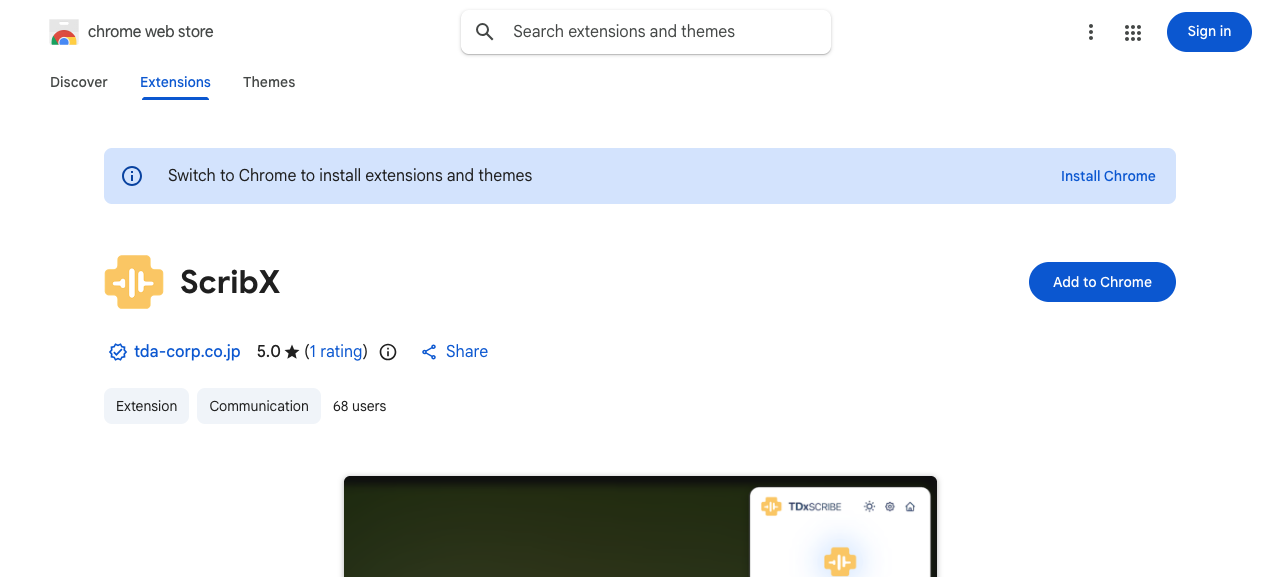
1- 1Click Add to Chrome
- Open the ScribX page in the Chrome Web Store in your browser. Edge, Brave and Arc can also install from this store.
- Click Add to Chrome. In Edge the button may say Get.
- The browser shows what ScribX may access, for example the Google Meet and Zoom pages. Click Add extension.
Pin it to your toolbar
Pin the ScribX icon so you can always see it.
- Click the puzzle-piece icon (Extensions) in your browser toolbar.
- Find ScribX and click the pin icon next to it.
Change the language of the extension
The extension can show its buttons in English, 日本語, Tiếng Việt, 한국어 or 中文.
- Click the ScribX icon, then the gear icon (Settings).
- Under UI Language, pick your language.
See Extension settings.
Check that it works
- Click the ScribX icon. The popup opens.
- Click Sign In and sign in with your ScribX account.
- Open a meeting in Google Meet, or a Zoom meeting in the browser. A narrow ScribX bar appears on the edge of the meeting page.
- The first time you join a meeting, ScribX shows a short welcome guide. Follow it, or click Skip.
If a meeting tab was already open when you installed ScribX, the bar should appear without a reload. If it doesn't, reload the meeting tab. If it still doesn't appear, see Troubleshooting the extension.