The web app
The ScribX web app is at platform.scribx.app. It is the main place for everything in ScribX. It works on its own, without the browser extension. In the web app you can send ScribX to a meeting, see your upcoming meetings, read and share your notes, and change your settings.
You can do all of the above with the web app alone. The extension is optional. It adds ScribX inside Google Meet and Zoom when they run in your browser.
The Home page
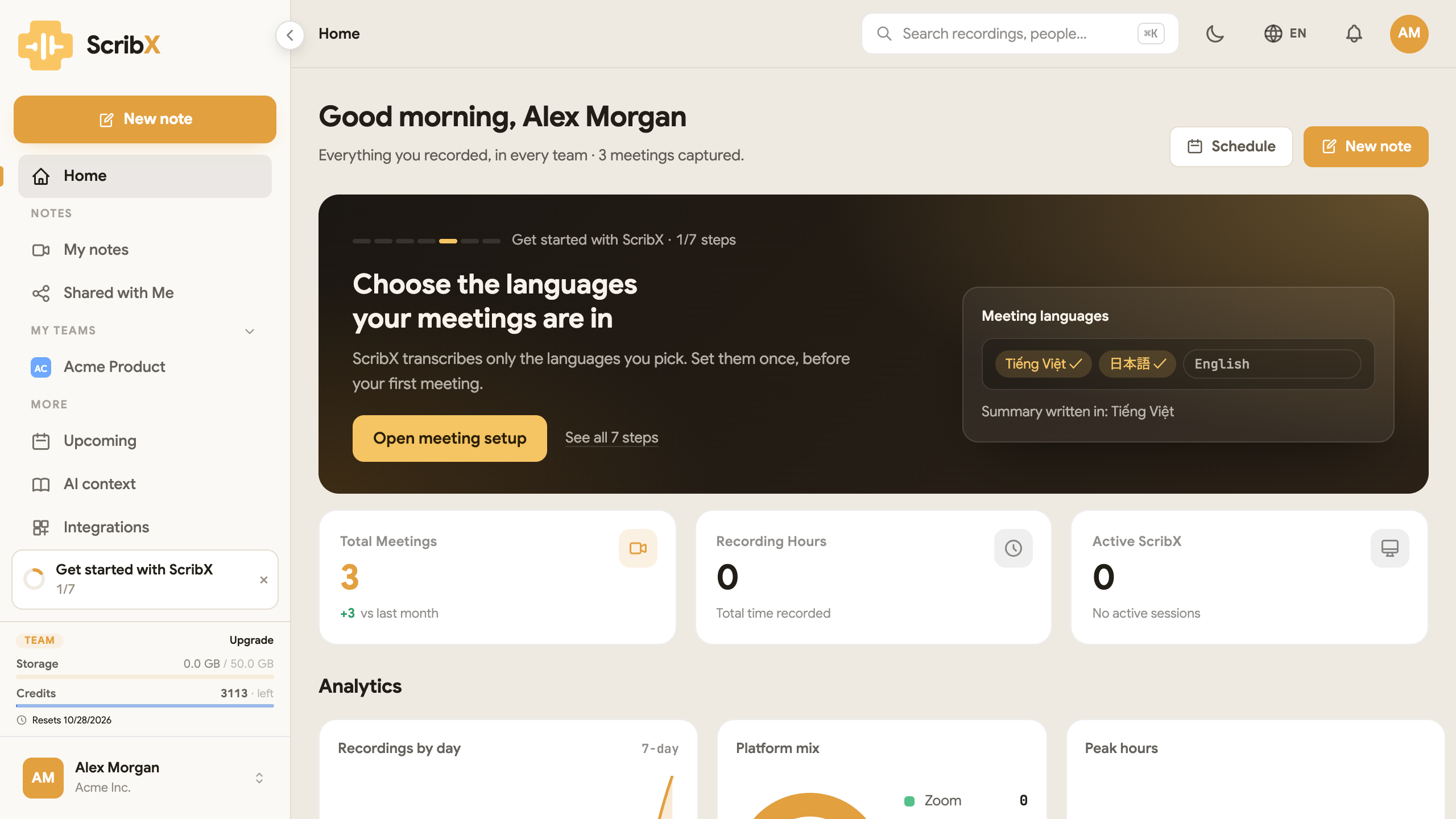 1234
1234- 1New note
- 2Schedule: open Upcoming
- 3Get started checklist
- 4Plan, storage and credits
After you sign in, you see Home. It has:
- New note (top right): start a new meeting. The new note lets you invite ScribX to a meeting link, record on this device, or upload a file. See Capture a meeting.
- Schedule: opens Upcoming, the list of meetings from your connected calendar that ScribX will join. See Upcoming meetings & calendar.
- A Get started with ScribX card with the next setup step.
- Numbers about your meetings, and your Recent recordings.
The sidebar
The sidebar is on the left. The big New note button is at the top. It is the same as New note on Home.
NOTES
| Item | What it shows |
|---|---|
| Home | Your recent meetings and what is coming |
| My notes | Everything you recorded, in every team. See My notes |
| Shared with Me | Notes that other people shared with you |
MY TEAMS
Each team you belong to is listed by name. Click a team to see the team's notes. Your own notes and a team's notes are kept apart, so you always know who can see a note.
- Create team makes a new team.
- The ⋯ next to a team offers New folder. Team admins also see Team settings there.
MORE
| Item | What it shows |
|---|---|
| Upcoming | Meetings on your calendar that ScribX will join |
| AI context | Context, summary templates and the glossary |
| Integrations | The tools you connect: calendar, Zoom, Notion and Outline, and the API, webhooks and MCP |
| Trash | Deleted notes. You can restore them until you empty the Trash |
At the bottom of the sidebar:
- Get started with ScribX: a list of seven steps for your first week. You get credits for finishing them. Click × to hide it. It stays hidden.
- The usage box: your plan, the storage you use, the credits you have left, and the date they reset. Every member can see it.
The top bar
- Search recordings, people…: search your notes, teams, actions and pages. You can also press ⌘K (Mac) or Ctrl+K (Windows).
- The moon or sun button: switch between dark and light.
- EN: the language of the app.
- The bell: your notifications.
- Your avatar (your initials): your account menu.
To hide the sidebar and get more room, click the ‹ arrow at the top of the sidebar. Click it again to show the sidebar.
Your account menu
Click your avatar at the top right, or your name at the bottom of the sidebar. The menu has:
- Profile & settings: your own settings, your teams and, for admins, the organization. See Recording & summary settings.
- Organization: your organization's page.
- Switch to dark or Switch to light.
- Install Chrome extension: shown when the extension is not installed yet.
- Sign out.
Other ways to use ScribX
- Live Companion: a small window that shows a meeting's live transcript next to your meeting.
- Compact mode: the web app on your phone, with a record button in the bottom bar.