Data handling & retention
This page explains what ScribX keeps, how long it keeps it, and how you delete it. Most of it applies to every plan. The table below shows what changes with the plan.
 12
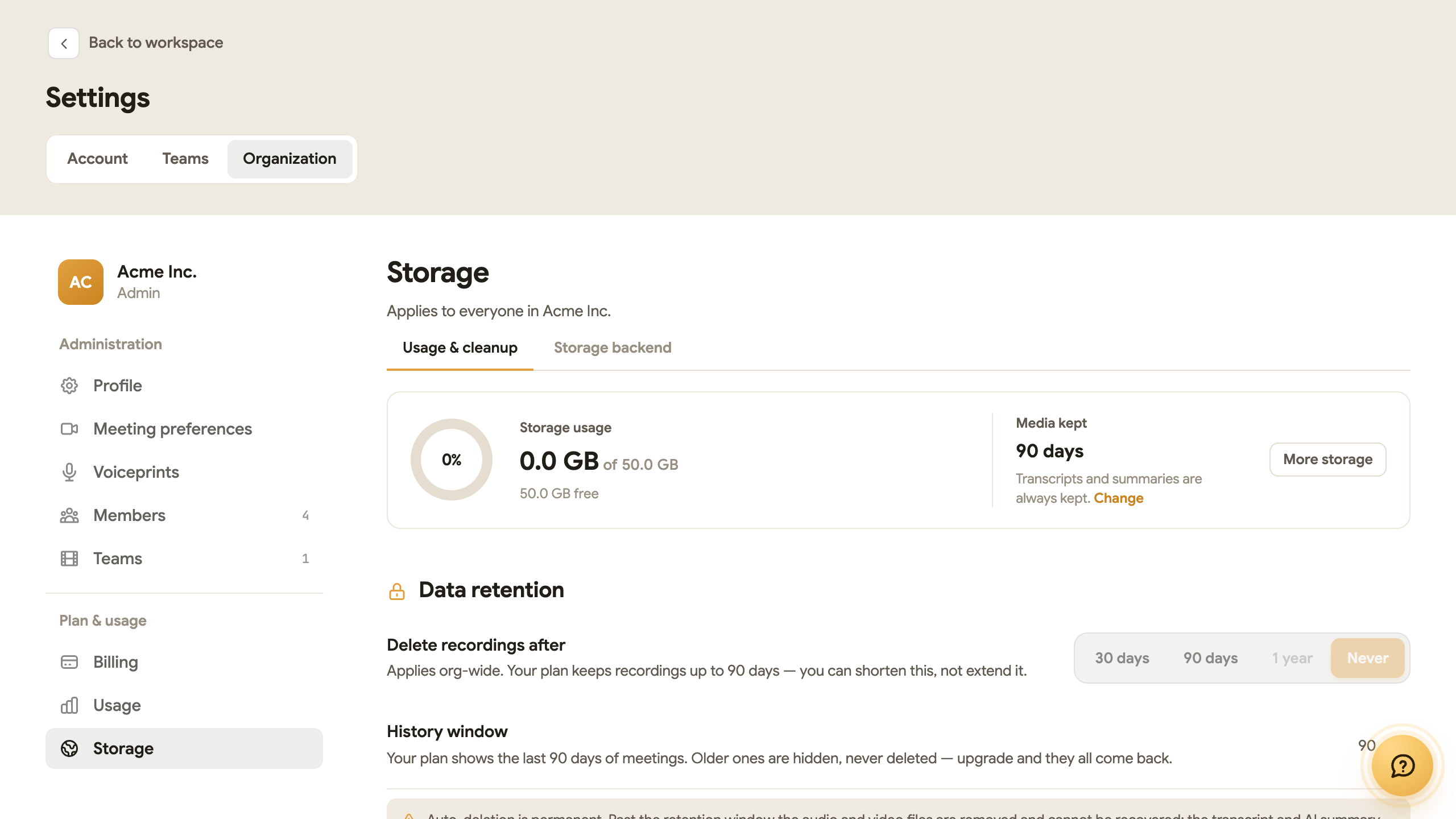
12- 1Storage used, and how long media is kept
- 2Delete recordings after
What each plan can do
| Free | Pro Pro | Team Team | Enterprise Enterprise | |
|---|---|---|---|---|
| Longest time media is kept | 30 days | 90 days | 90 days | As long as you want |
| Choose a shorter time (Delete recordings after) | ✓ | ✓ | ✓ | ✓ |
| Choose Transcript only (no audio or video kept) | ✓ | ✓ | ✓ | ✓ |
| Delete the media of one meeting yourself | ✓ | ✓ | ✓ | ✓ |
| Keep recordings in your own cloud storage | — | — | — | ✓ |
"Media" means the audio and video files. The transcript and the summary are always kept, on every plan, until you delete the note.
What ScribX keeps
- The transcript, translations and summary of each meeting. They are encrypted when saved.
- The audio and video (the recording). It is kept by default. You can choose not to keep it (see below). It is deleted when your retention time ends, or when you delete it.
- The live audio that ScribX hears during a meeting is used to write the transcript. It is not saved as a separate file.
We don't train on your data
ScribX never uses your meeting content to train any AI model. Our contracts forbid our partner companies (sub-processors) to do so. Your data is yours.
Keep no audio or video
Choose Transcript only. ScribX then keeps only the text and the summary. You can choose it in three places:
- For all your meetings: click your avatar, then Profile & settings → Account → Meeting preferences. Under Recording format, click Transcript only.
- For a whole team (team admins): Profile & settings → Teams → pick the team → Meeting preferences. See Recording & summary settings.
- For one meeting or note: when you start it, under Record, click Transcript only. For a new note, click Options first.
Delete data yourself
- Delete the media of one meeting. An organization admin opens Organization → Storage. Under Largest recordings, click Delete media on the row. The audio and video are deleted at once. The transcript and summary are kept. This cannot be undone.
- Delete a whole note. Open the note. Click ⋯ (top right), then Move to trash. See Recordings.
Set how long media is kept
An organization admin sets this for the whole organization:
- Click your avatar, then click Organization.
- On the left, click Storage. Stay on the Usage & cleanup tab.
- Under Data retention, next to Delete recordings after, click 30 days, 90 days, 1 year or Never.
What you'll see:
- Choices longer than your plan allows are greyed out.
- After that time, ScribX deletes the audio and video for good. The transcript and the summary are kept.
- Media kept at the top of the page shows the current time. The Deleted on column in Largest recordings shows when each file will be deleted.
- History window (on some plans) shows how far back the library lists meetings. Older meetings are hidden, not deleted. They come back when you move to a bigger plan.
- If your plan changed recently, a note says that nothing is deleted before a certain date.
When an organization or account is deleted
- A deleted organization can be restored for 30 days. After that, its recordings and voiceprints are removed. See When a plan ends, and deleting an organization.
- Transcripts, notes and account data are deleted within 30 days after an account is deleted.
- Audit logs are kept for 7 years, for financial rules.
Compliance
- Under the GDPR, ScribX is a data processor for your meeting data.
- A Data Processing Agreement (DPA) is available. We also handle requests from people who want to see or delete their personal data.