Zoom App integration
Who this page is for. This page is for organization admins and the IT team. By default, ScribX joins Zoom through the shared ScribX app on the Zoom Marketplace. This page explains how an organization can use its own Zoom Marketplace app instead, and what the Zoom connection does. If you are not technical, send this page to your IT team.
Do you only want ScribX to record your Zoom meetings? Then you do not need this page. Each person connects their own Zoom account, and it takes about a minute: Connect your Zoom account.
Zoom only admits an app that can name the user who sent it. So ScribX cannot join a Zoom meeting until the person who starts it has connected their Zoom account. This is true on every plan, with the shared app or with your own app.
Adding the app
Prerequisites
- A ScribX account that is a member of at least one team (sign up if you don't have one).
- A Zoom account (any plan). If your Zoom admin restricts app installs, they may need to pre-approve ScribX on the Zoom Marketplace first.
Steps
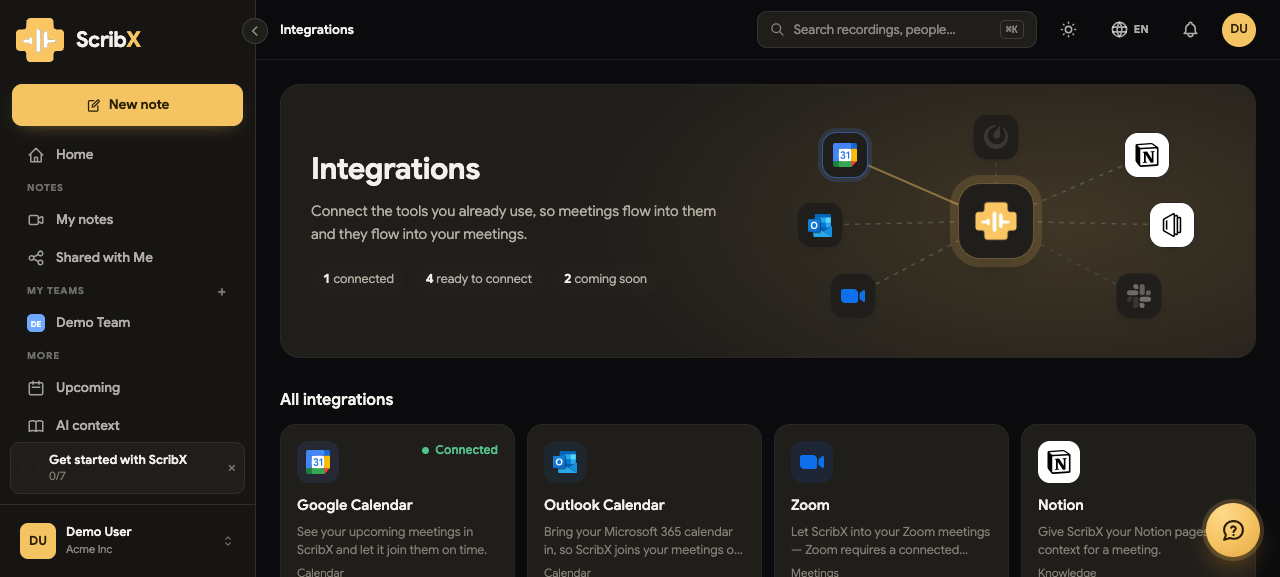
- Sign in to ScribX. In the sidebar under MORE, click Integrations, then click Zoom.
- In the Connection section, click Connect.
- The zoom.us website opens. Sign in if you are not signed in yet. Zoom shows the permissions ScribX asks for.
- Read the permissions and click Allow.
- You come back to ScribX. Integrations → Zoom now shows Connected. The setup is complete.
Each teammate who wants ScribX to use their own Zoom account repeats these steps with their own Zoom sign-in. A connection belongs to one person and works in all of that person's teams.
Something not working during setup? See Troubleshooting below.
For organization admins
Organization admins choose which Zoom Marketplace app the organization uses Enterprise:
- Click your avatar, then click Organization.
- On the left, click Meeting preferences, then click the Meeting platforms tab.
- In the Zoom section, under Zoom app, choose one:
- ScribX app (default): the shared ScribX app on the Zoom Marketplace. You set up nothing. Members connect as described above.
- Your Zoom app: your organization's own Zoom OAuth app. Enter its Client ID, Client secret and, if you want, the Webhook secret. Then click Save app. A team can still use its own app instead.
This setting only chooses the app. No Zoom account is connected here. An admin cannot connect Zoom for a colleague, because ScribX has no admin-level Zoom permissions. Every member, admins too, connects their own account on Integrations → Zoom, as described above.
Using the integration
Automatic recording permission
Use case: normally, when a bot joins a Zoom meeting, the host must allow it to record, in the meeting. With a connected Zoom account, ScribX gets a local recording token from Zoom. The notetaker then starts recording without asking the host, and it can skip the waiting room.
Prerequisites: the meeting is hosted (or the bot is created) by a user whose Zoom account is connected, and that account's plan supports local recording tokens.
Expected outcome: the ScribX notetaker joins, skips the waiting room, and starts recording at once. The host sees no permission request.
Joining on your behalf
Use case: ScribX can join with an on-behalf token from your connected Zoom account. Zoom then knows who sent the notetaker, and admits it more easily to meetings you attend.
Prerequisites: your connected Zoom account supports on-behalf tokens (most paid Zoom plans do), and you are a participant in the meeting. ScribX uses the account of the person who started the notetaker, or of the meeting's host. It never uses a colleague's account instead. Zoom refuses a token from someone who is not in the meeting, and it would put their name on a meeting they never attended.
Expected outcome: the notetaker joins associated with your account instead of as a fully anonymous participant.
Meeting recognition
Use case: after you connect, ScribX learns about the meetings you create. Zoom tells ScribX about each new meeting (the meeting.created event), and ScribX also checks your upcoming meetings regularly. Your meetings are then matched to your account. This is how the two features above choose the right person.
Prerequisites: none beyond a connected account; this happens in the background.
Expected outcome: meetings you host are linked to your connection. You see nothing new on screen. The features above simply work.
Removing the app
You can disconnect at any time from the Zoom side:
- Sign in to the Zoom App Marketplace.
- Click Manage → Added Apps (or visit your installed apps).
- Find ScribX and click Remove.
What happens when you remove the app. Zoom tells ScribX at once, and ScribX immediately:
- Deletes your Zoom OAuth tokens. ScribX can no longer access your Zoom account in any way.
- Deletes the meeting-to-account mappings learned from your Zoom account.
- Confirms the data deletion back to Zoom (Zoom's data-compliance notification) within 24 hours.
After that, your ScribX connection shows Disconnected. Removing the Zoom app does not delete recordings, transcripts or summaries you already have. They stay in ScribX and follow your organization's data-retention settings. You can delete them at any time. To send ScribX to Zoom meetings again, connect your account again.
Organization admins who use Your Zoom app can also remove the organization's app: open Settings → Organization → Meeting preferences → Meeting platforms. In the Zoom section, open the ⋯ menu and click Remove app. Teams without their own app then use the shared ScribX app again.
To connect again later, repeat Adding the app.
Troubleshooting
- The Allow screen shows an error, or opens a broken page. Your organization may use Your Zoom app with incomplete details. Ask your organization admin to check Settings → Organization → Meeting preferences → Meeting platforms, or to switch back to ScribX app.
- I can't find the Connect button. It is on Integrations → Zoom, and every member has it. It is not in the organization settings: each person connects their own account.
- The notetaker still asks the host for recording permission. The meeting's host has not connected their Zoom account, or the host's Zoom plan does not give local recording tokens. Connect the host's Zoom account, or allow recording in the meeting.
- Anything else: see the FAQ or email support@scribx.app.