Capture your first meeting
ScribX captures a meeting two ways. Pick the one that fits — you'll have a transcript and an AI write-up in your library either way.
Choose how to capture
 12
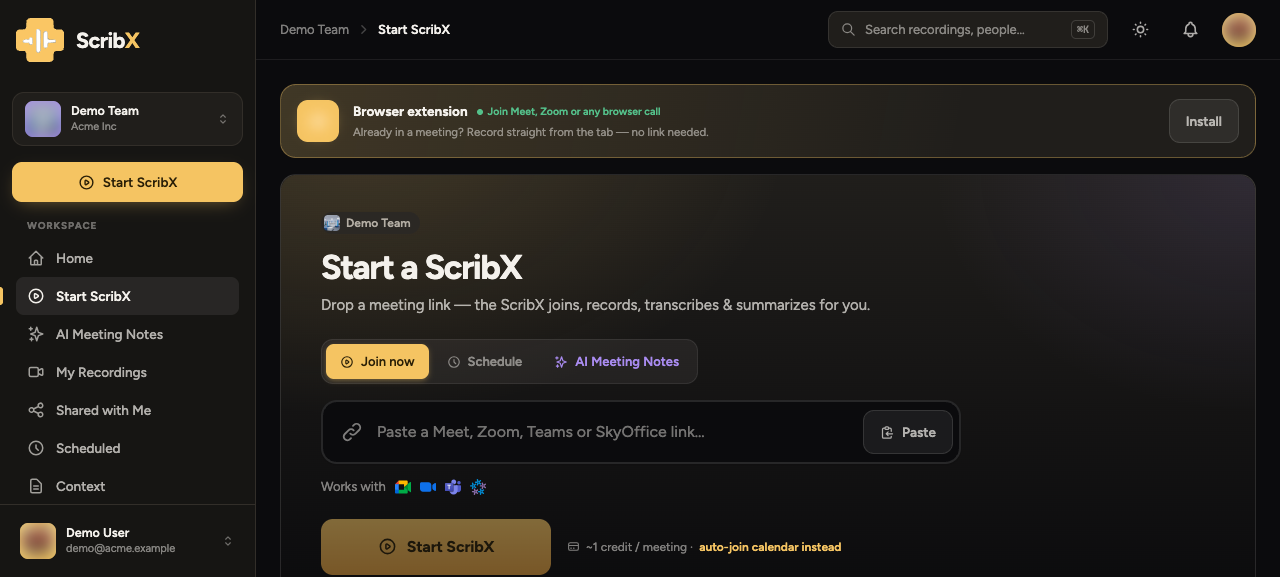
12- 1Send a bot — paste a Meet / Zoom / Teams link
- 2AI Meeting Notes — capture a Chrome tab or your mic, no bot
| Send a bot | AI Meeting Notes (capture a tab) | |
|---|---|---|
| How | A bot joins the call via its link | Records a Chrome tab or your mic — nothing joins |
| Best for | Scheduled / hands-off calls; you can leave the tab | Try it now, in-person & ad-hoc; no link needed |
| Needs | A meeting link | Just the tab you're in |
Fastest first try
AI Meeting Notes is the quickest way to see ScribX work — no link, no bot, no install. Pick it if you just want to try ScribX right now. Choose Send a bot for a real scheduled meeting.
Option A — Send a bot
- Open Start ScribX in the web app, keep Join now.
- Paste the meeting link (Meet / Zoom / Teams) and pick the team it lands in.
- Click Start ScribX — the bot joins and starts transcribing.
Full guide: Send a bot.
Option B — AI Meeting Notes (capture a tab)
- Open Start ScribX → AI Meeting Notes.
- Pick the audio source — your mic (in-person) or a meeting tab.
- Click Start transcribing.
Full guide: AI Meeting Notes · In-browser notes.
Then…
- Watch the live transcript & translation as you talk.
- When the call ends, open your library for the AI write-up.
- For the live in-meeting panel, install the extension.