Desktop app (Beta)
The ScribX desktop app takes notes of a call on your own computer: from your microphone and from the sound of the call. Nobody joins the meeting, so it works wherever you meet — the Zoom and Microsoft Teams apps, Google Meet or any meeting in your browser, Slack huddles — and the notes land in your ScribX library like any other note, with the live transcript, translation and summary.
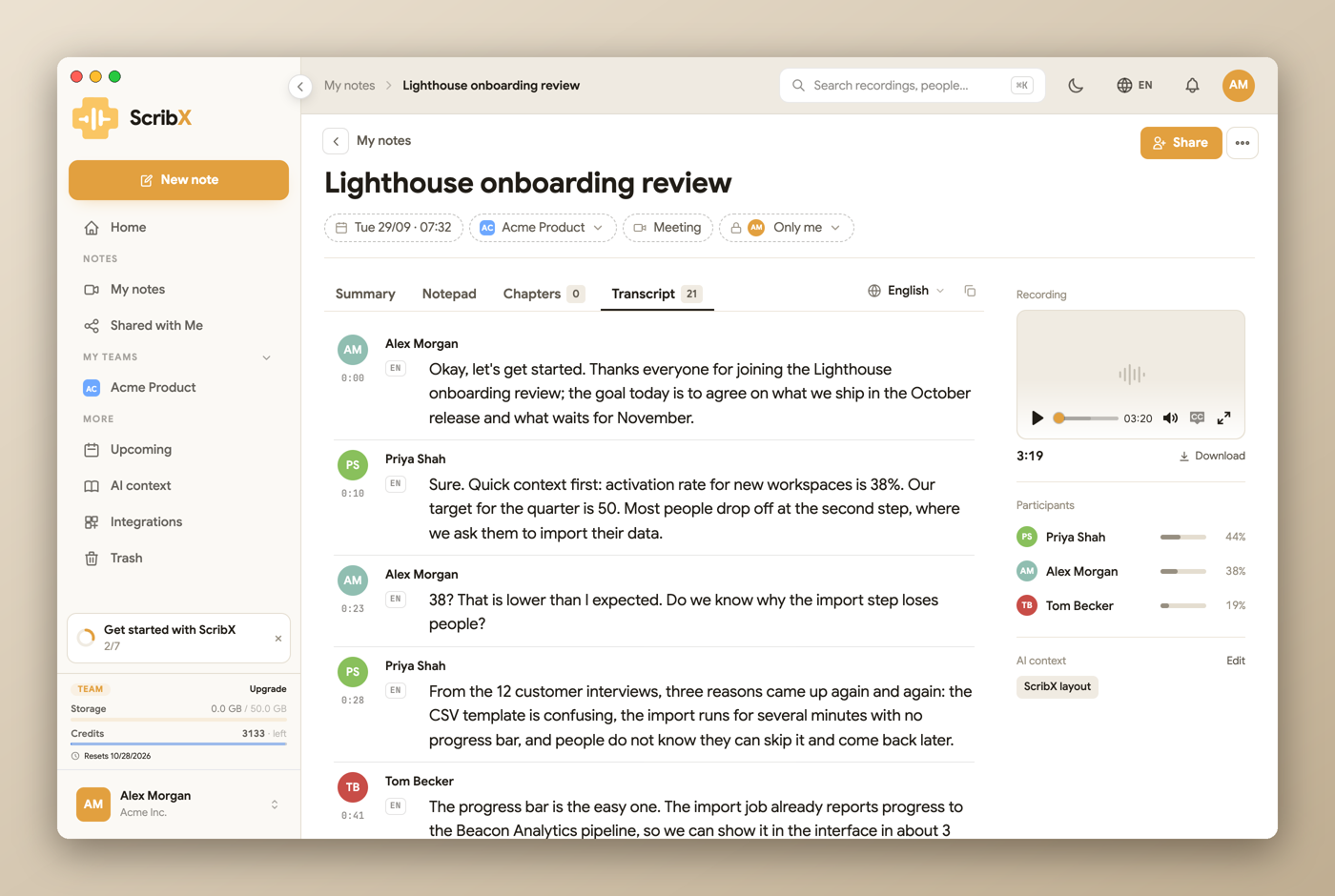
The desktop app is in beta. It is ready for real meetings, and it may still change from one update to the next. Something not working as you expect? Tell us at support@scribx.app.
Install
- Download ScribX for Mac. Pick Apple Silicon for a Mac with an Apple chip (M1 or later), Intel for an older one (Apple menu → About This Mac says which).
- Open the
.dmgand drag ScribX into Applications. - Open ScribX and sign in with your ScribX account. Continue with Google opens your browser to sign in, then comes back to the app.
It needs macOS 14.2 or later. The app is signed and notarized by Apple.
Allow the microphone and the call's sound
The first time, ScribX asks for two permissions, and macOS asks you once for each:
| Permission | Why |
|---|---|
| Microphone | So what you say is in the notes. |
| System audio | So the other people in the call are in the notes too. |
| Accessibility (optional) | Lets ScribX read the meeting's name and tell a meeting in your browser from a video. |
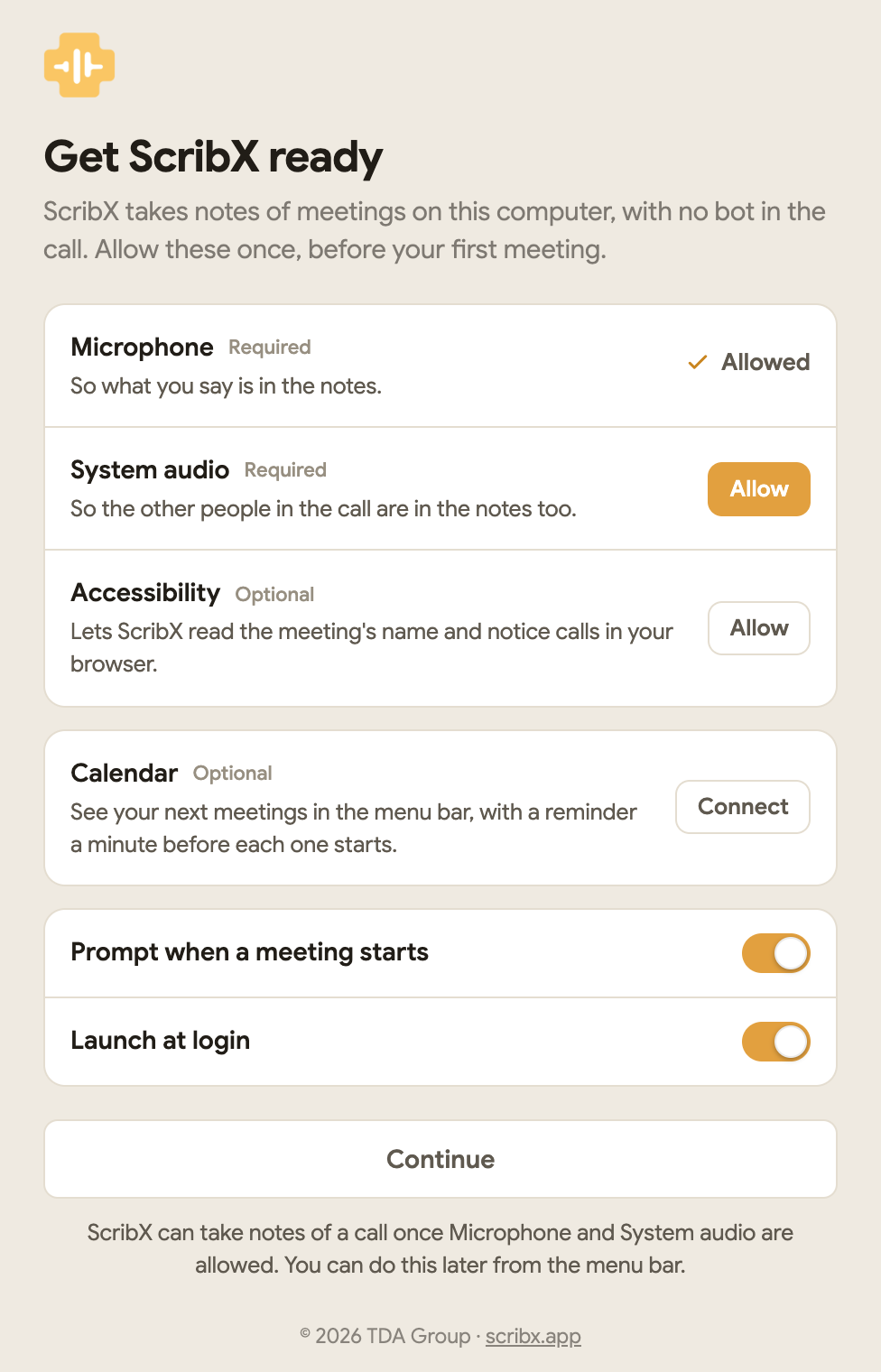
If you clicked Don't Allow, turn ScribX on in System Settings → Privacy & Security (Microphone, Screen & System Audio Recording, Accessibility), then come back. You can open this screen again from the app's menu: ScribX → Permissions…
Take notes
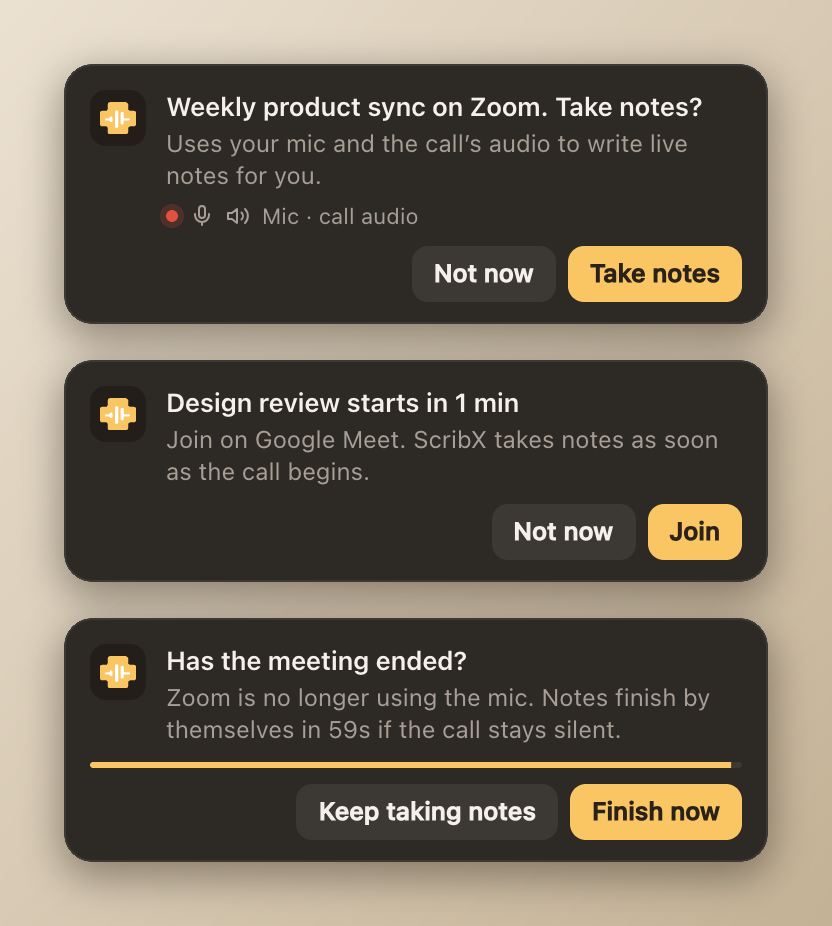
- When a meeting starts, ScribX notices that Zoom, Teams or a meeting tab started using the microphone and, after a few seconds, shows a small card: Take notes or Not now. Nothing starts until you say so.
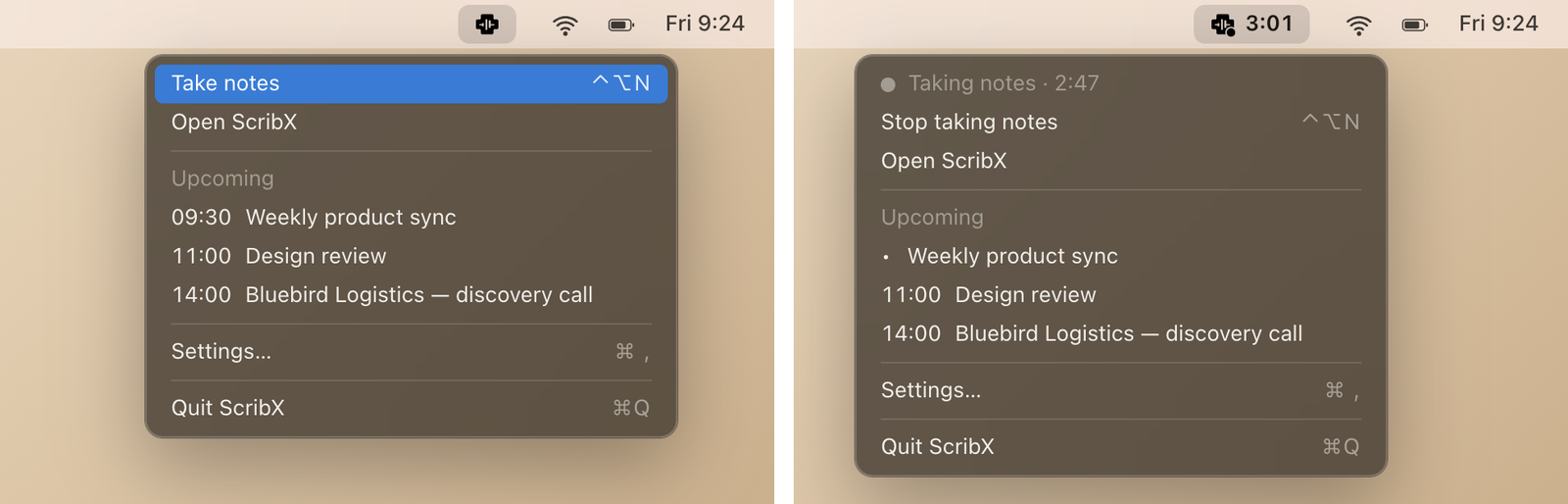
- From the menu bar: click the ScribX icon, then Take notes, or press ⌃⌥N (Control-Option-N) anywhere.
- From a note: on an empty note, choose to take notes on this computer.
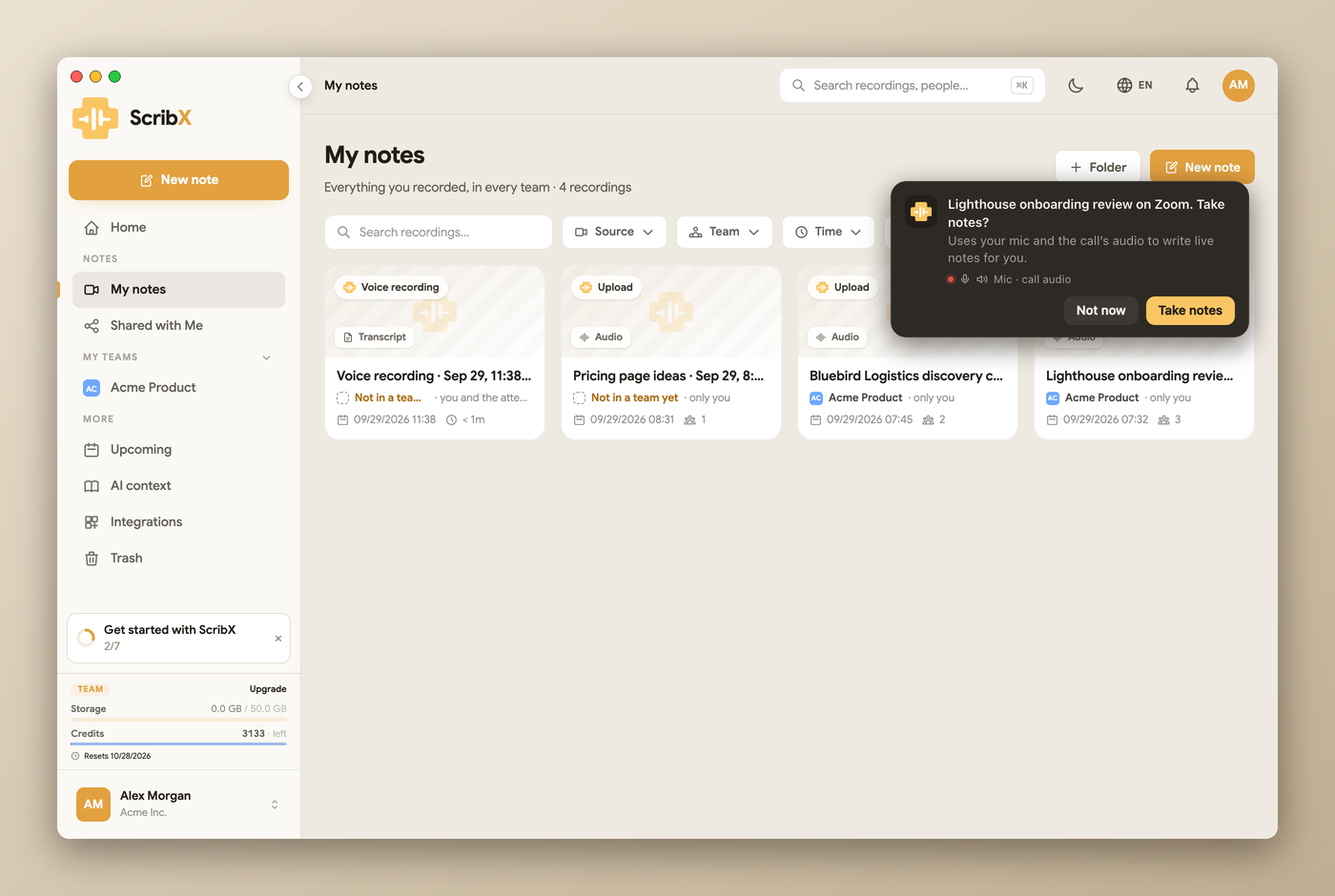
Take notes opens a new note in the team you last worked in, and starts it.
While notes are being taken, the menu bar icon shows a dot and the time. Switch to your call and a small floating recorder stays on top of it. ⌃⌥M mutes and unmutes your microphone.
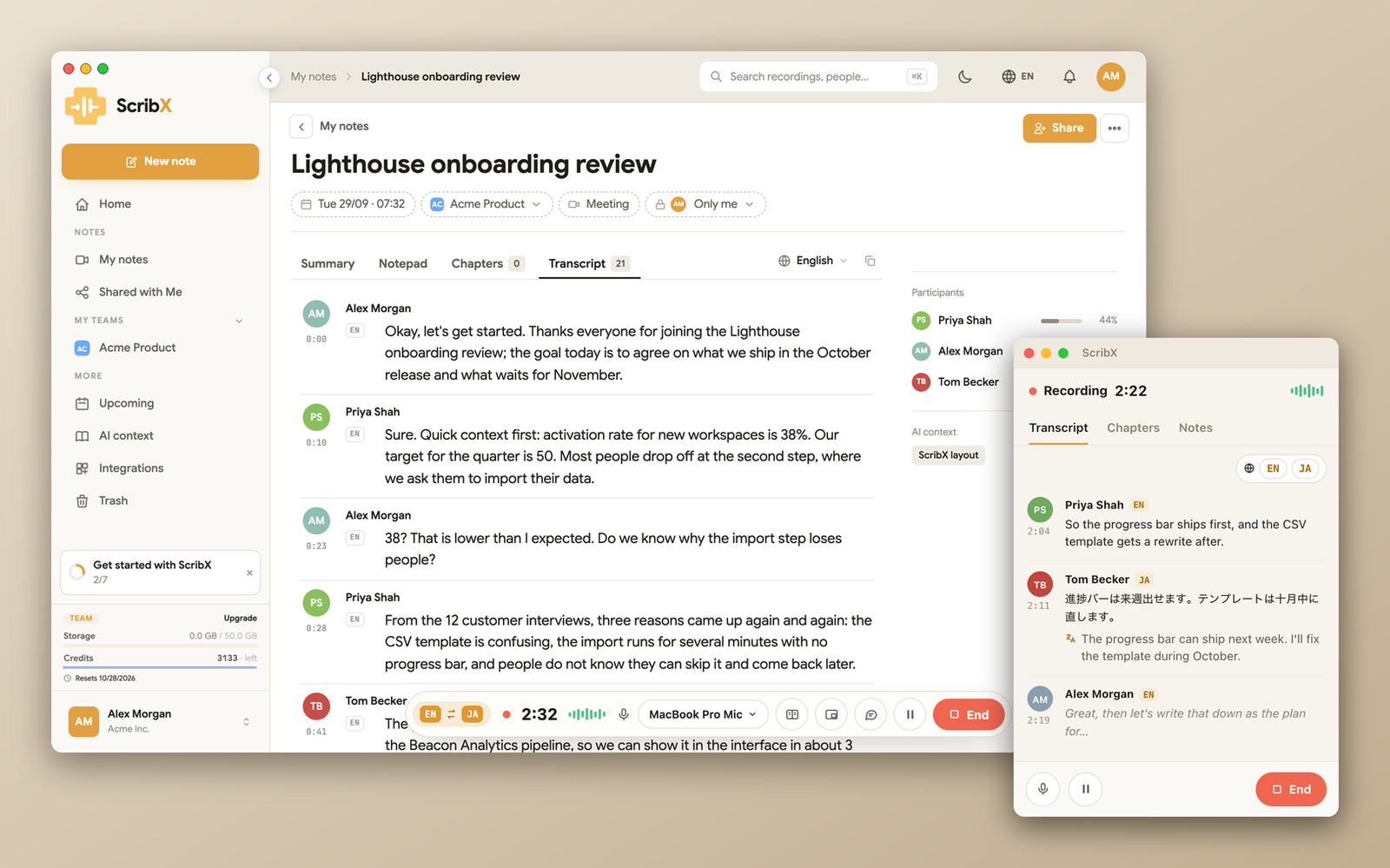
When the call ends, ScribX asks whether the meeting is over and finishes the note by itself a minute later if the call stays silent.
No bot announces itself in the meeting, so the recorder bar has a notice button: it copies a short line ("… is taking notes in this meeting with ScribX") to paste into the meeting chat, in the meeting's languages.
The menu bar
The ScribX icon in the menu bar keeps to what you need during the day:
- Take notes (or, while notes are being taken, the time and Stop)
- Open ScribX
- Upcoming: your next meetings, when a calendar is connected
- Settings… (⌘,) and Quit ScribX (⌘Q)
Permissions… and Check for updates… are in the app's own menu (ScribX, next to the Apple menu) while the ScribX window is in front. The menu bar and the app follow the language you read ScribX in.
Calendar
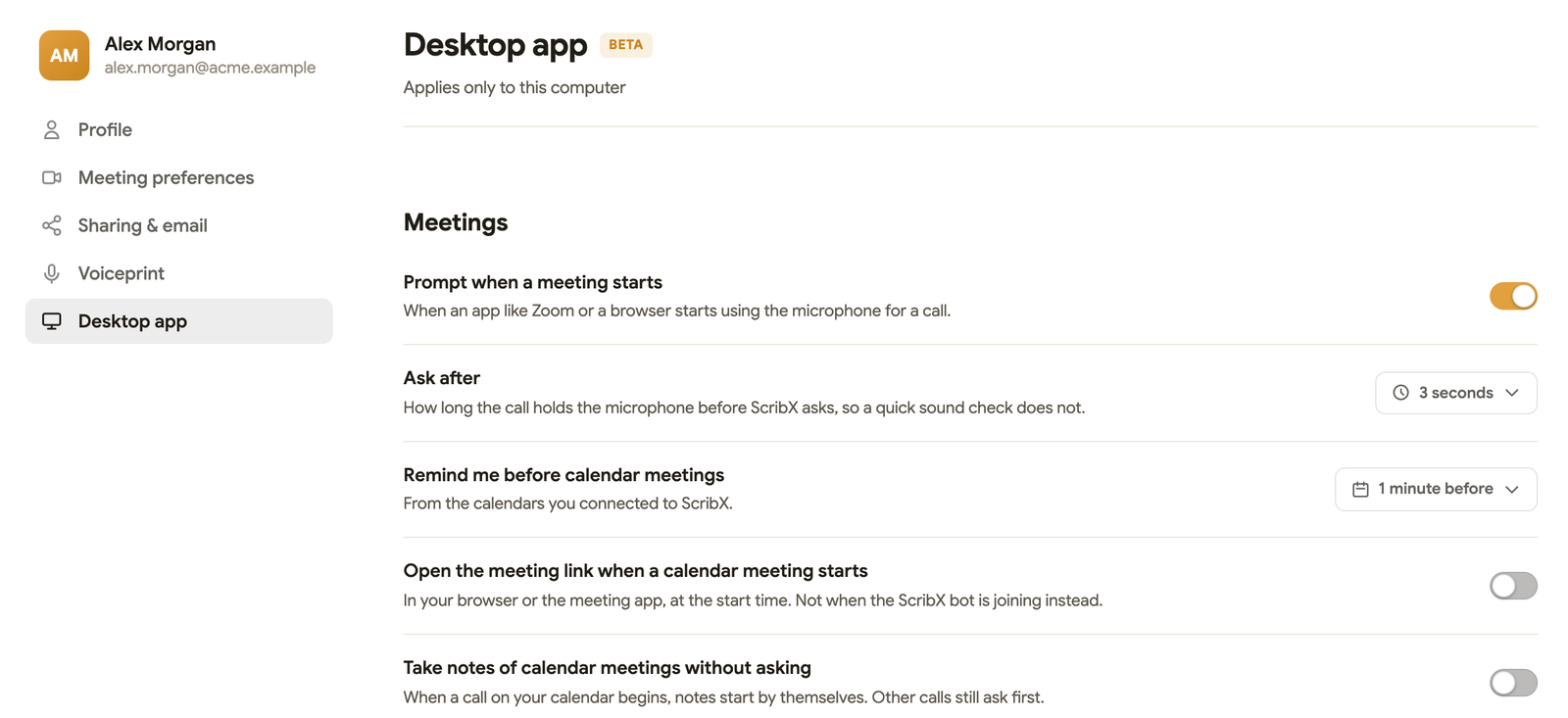
With a calendar connected, the menu bar lists your next meetings, and a card reminds you a minute before one starts, with Join — the meeting link opens, and the notes start when the call does. In Settings → Desktop app you can also have calendar meetings open by themselves at their start time, and take notes of them without asking.
Settings
Settings… (⌘,) opens Settings → Desktop app:
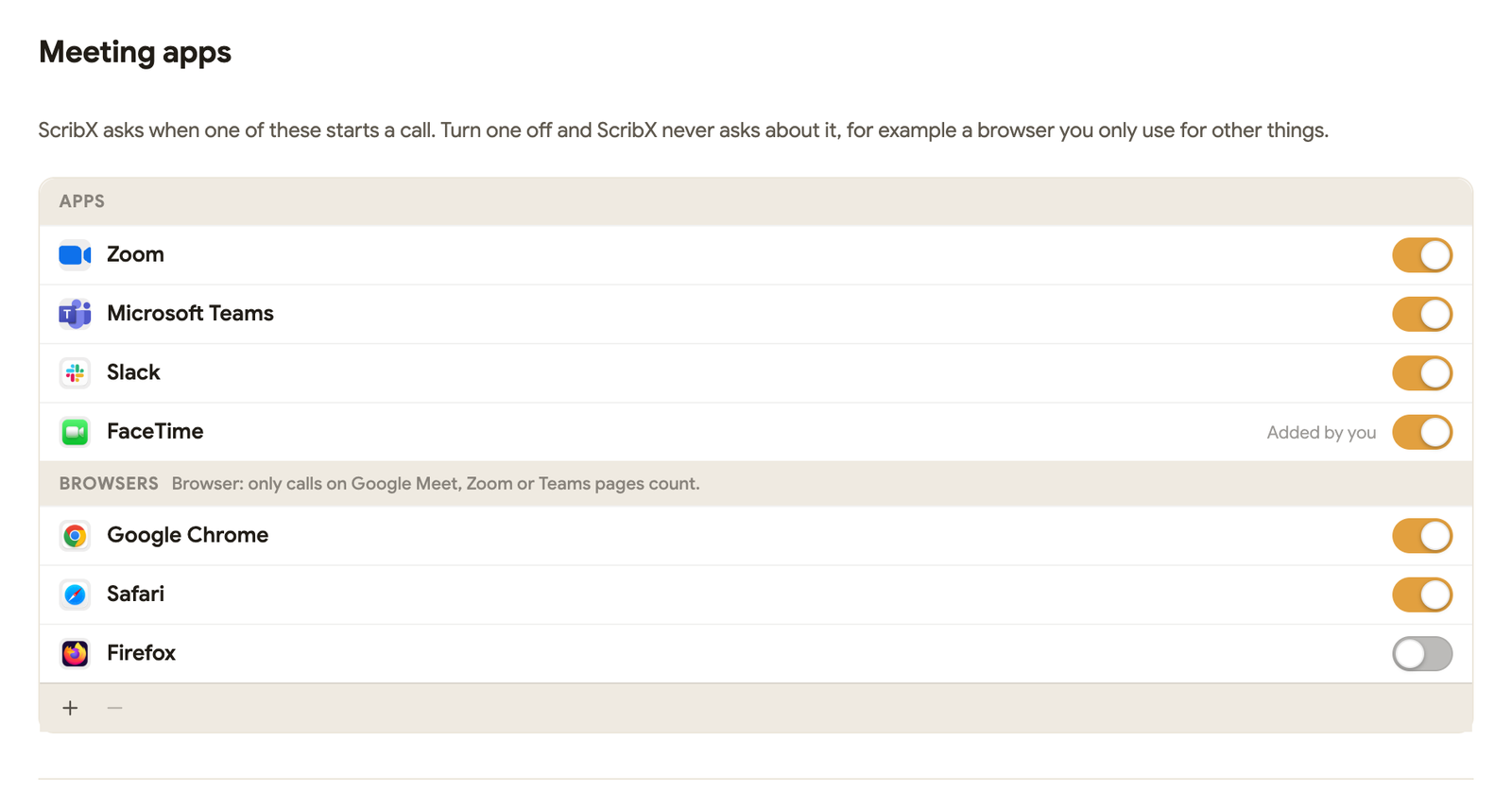
- Meetings: prompt when a meeting starts, how long to wait first (3 seconds by default), reminders before calendar meetings, staying quiet while a Focus (Do Not Disturb) is on, and which meeting apps and browsers count. Use + to add an app ScribX does not know yet.
- Sound from the call: only the meeting app (music, videos and notification sounds stay out of your notes) or everything on this computer.
- While taking notes: the floating recorder, the words beside the menu bar icon, a notification when the summary is ready.
- This computer: launch at login, show ScribX in the Dock and the menu bar, how long a copy of the audio stays on the computer (Show in Finder), automatic updates.
Where you left off
Quit ScribX and open it again: it comes back to the page you were on.
When the connection drops
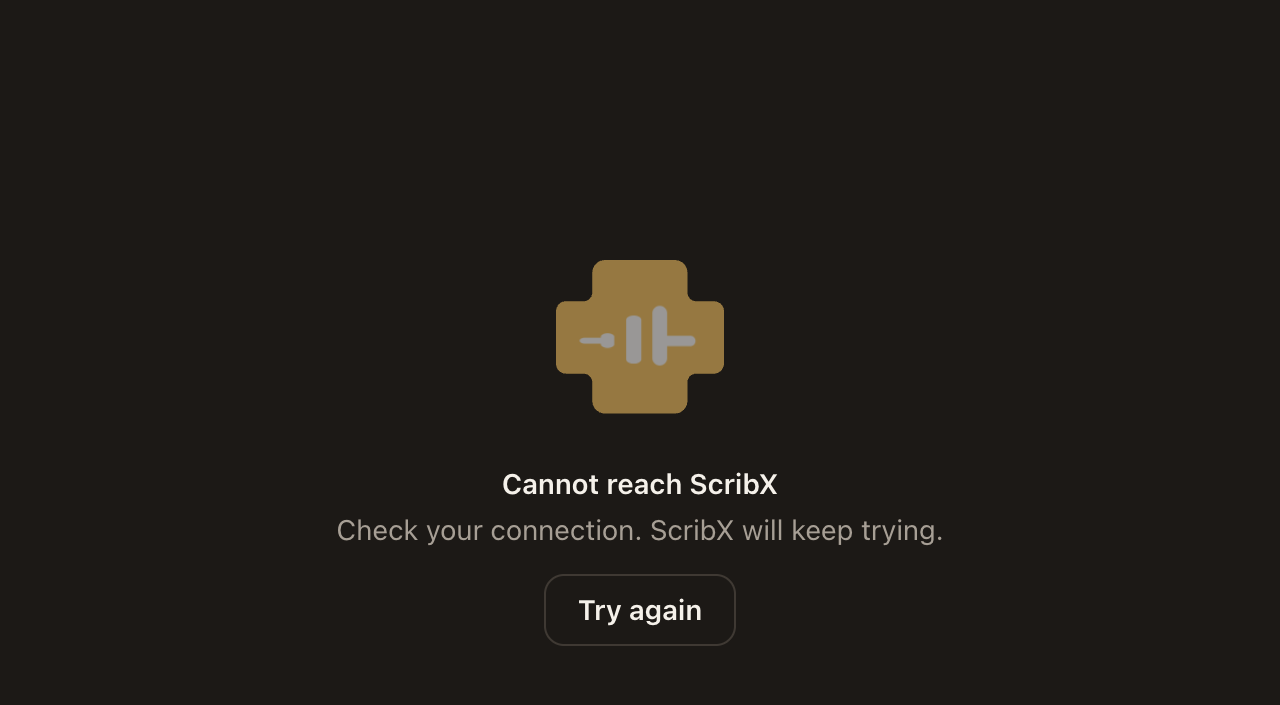
- Opening ScribX with no connection: the app says it cannot reach ScribX, with Try again, and keeps trying by itself. Once the connection is back, it goes on to where you left off.
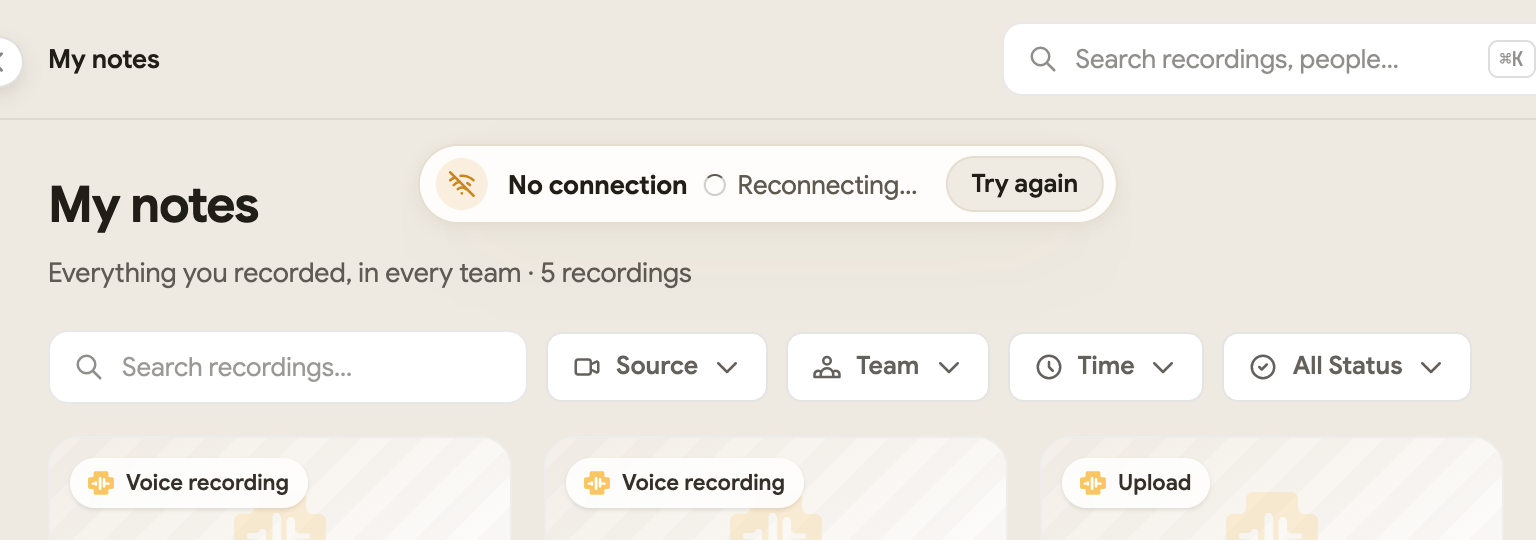
- While you use it: a small No connection pill appears at the top. ScribX keeps trying; when the connection is back the pill says Back online, and what you clicked meanwhile opens. Nothing you typed is lost.
- While taking notes: up to two minutes of audio are held and sent when the connection is back, so the transcript has no hole; a copy of the whole audio also stays on the computer.
Updates
ScribX updates itself between meetings — never while notes are being taken. To check now: ScribX → Check for updates…
Troubleshooting
- The other people are missing from the notes. Allow System audio (above). If Sound from the call is set to Only the meeting app, check that the app you meet in is on in Meeting apps.
- The notes hear music or a video. Set Sound from the call to Only the meeting app.
- No card when a meeting starts. Check Prompt when a meeting starts, that the app is on in Meeting apps, and that no Focus is on (or turn off Stay quiet in Focus).
The Windows and Linux apps are coming. Until then, use ScribX in your browser or send a bot.